- Claude Code
Harness. An AI helper that works in a folder of files. It writes and fixes code, and some office people use it to build small tools.
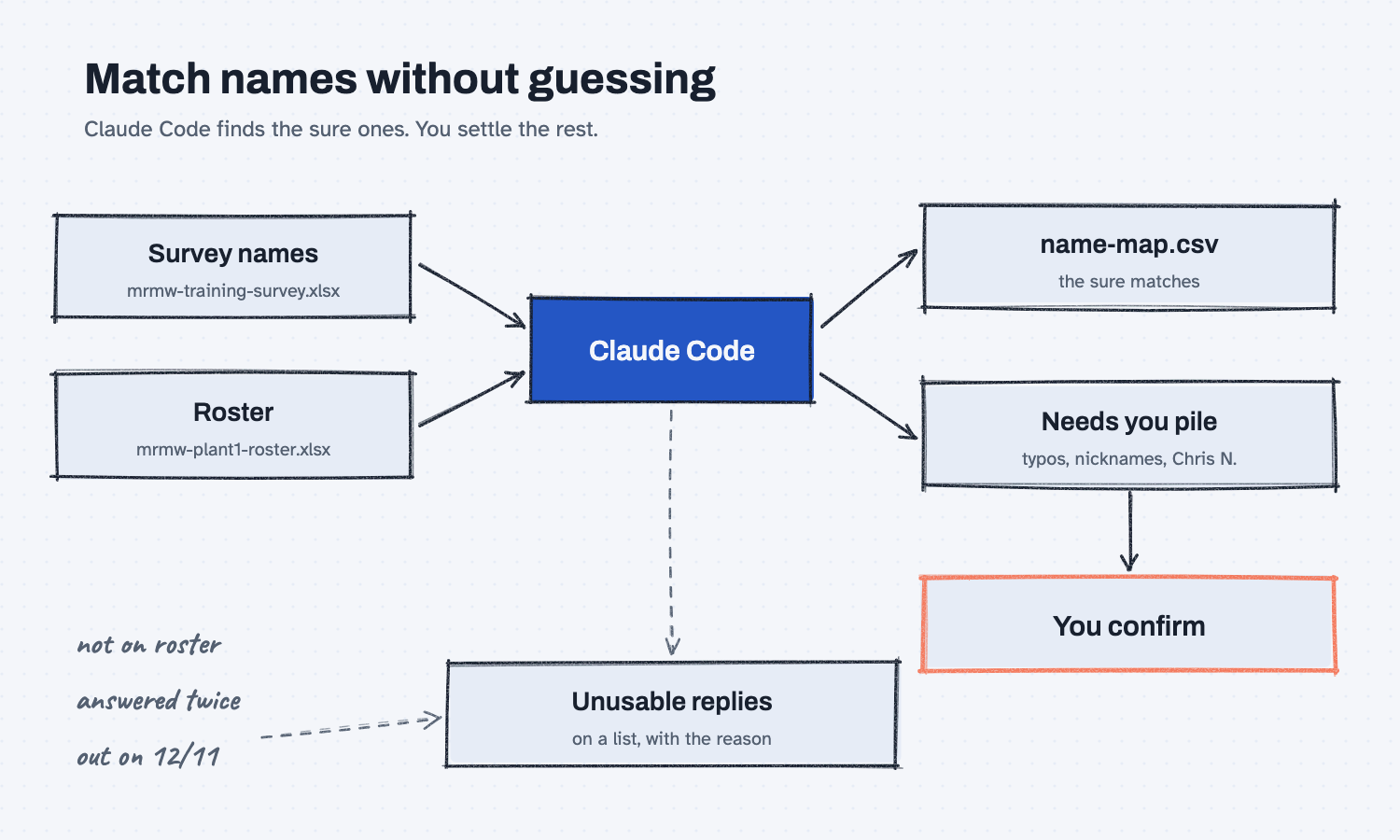
Answer. To match sign-up names to your roster, put the sign-up export and the staff roster in one folder and have Claude Code write a name map. Sure matches go straight through, and every typo, nickname, or two-way tie is flagged for you. You confirm the flagged rows, and you end with a checked name-map.csv and a list of replies that cannot be used.
Time and cost. About 15 minutes the first time. You need Claude Pro or higher, with Claude Code set up. Who this is for. Plant managers, plant office staff, HR, and safety or training leads who run a sign-up and then have to tie each reply to a real person.
This is part 1 of the training day series. Part 2, schedule a training day so nobody is double-booked, uses the name map you make here to build the schedule.
I built this series from a real training day, where someone used Claude Code to put 89 people into breakout sessions. The schedule could not start until every survey name was tied to a real person, and one name was a nickname the roster did not have. In this guide, Ray Tillman, the plant manager at Mesquite Ridge Metal Works (a made-up company), has the same problem. His team ran a Microsoft Forms sign-up for the Plant 1 Safety and Skills Day on Friday, December 11, and 39 people typed their own names, so some of them do not match the HR roster.
What will I learn besides matching names?
You will learn four habits that work any time AI has to read what people typed by hand, with a short "why" for each later in this guide.
- AI for the fuzzy part, a saved table for the rest. Claude reads the messy names once, and every later step reads the same saved map.
- Flag it, and never guess. When Claude is not sure, it says so in the row instead of picking a name.
- The person confirms the flagged rows. You look only at the rows that need you, and you have the last word on each one.
- Keep the replies that do not fit on a list, with the reason. A reply that cannot be used is written down with why, not dropped without a word.
What do I need before I start?
You need Claude Code on your computer, a terminal, and three sample files.
- Claude Code, Python, and uv. If you have not set them up yet, follow Install Claude Code and Install Python and uv first (about 10 minutes each, once). If you have never used a terminal, start with Open a terminal.
- The sample files, in one zip: training-day-names-sample.zip. It holds the three files below and the answer key.
- The roster: mrmw-plant1-roster.xlsx, 60 people from HR, with department, title, and who is out on 12/11.
- The sign-up export: mrmw-training-survey.xlsx, 39 replies from Microsoft Forms, with names typed by hand.
- The session list: mrmw-training-sessions.xlsx, the six sessions people could pick, so Claude can spot a pick that is not a real session.
- The answer key: name-map.csv, the map a person checked by hand.
Safe use. These files are made up. A real roster holds employee names, departments, and dates, and Claude Code sends what it reads to Claude. Check your company's AI rules before you use real employee data, and ask IT which tool is approved. Read the safe use notes.
How do I match sign-up names to my roster?
Put the files in one folder, look at the sign-up yourself, have Claude Code write the name map, and then confirm the rows it flags and check them against the answer key. Six steps.
Step 1. Put the three files in one folder
Download training-day-names-sample.zip and unzip it. You get a folder called training-day-names-sample with the three .xlsx files and an answer-key folder inside, side by side. Drag that folder into your Documents folder and keep its name, because the command in step 3 uses it. If you are not sure how, follow Download and unzip the sample files.
Step 2. Look at the sign-up export before Claude does
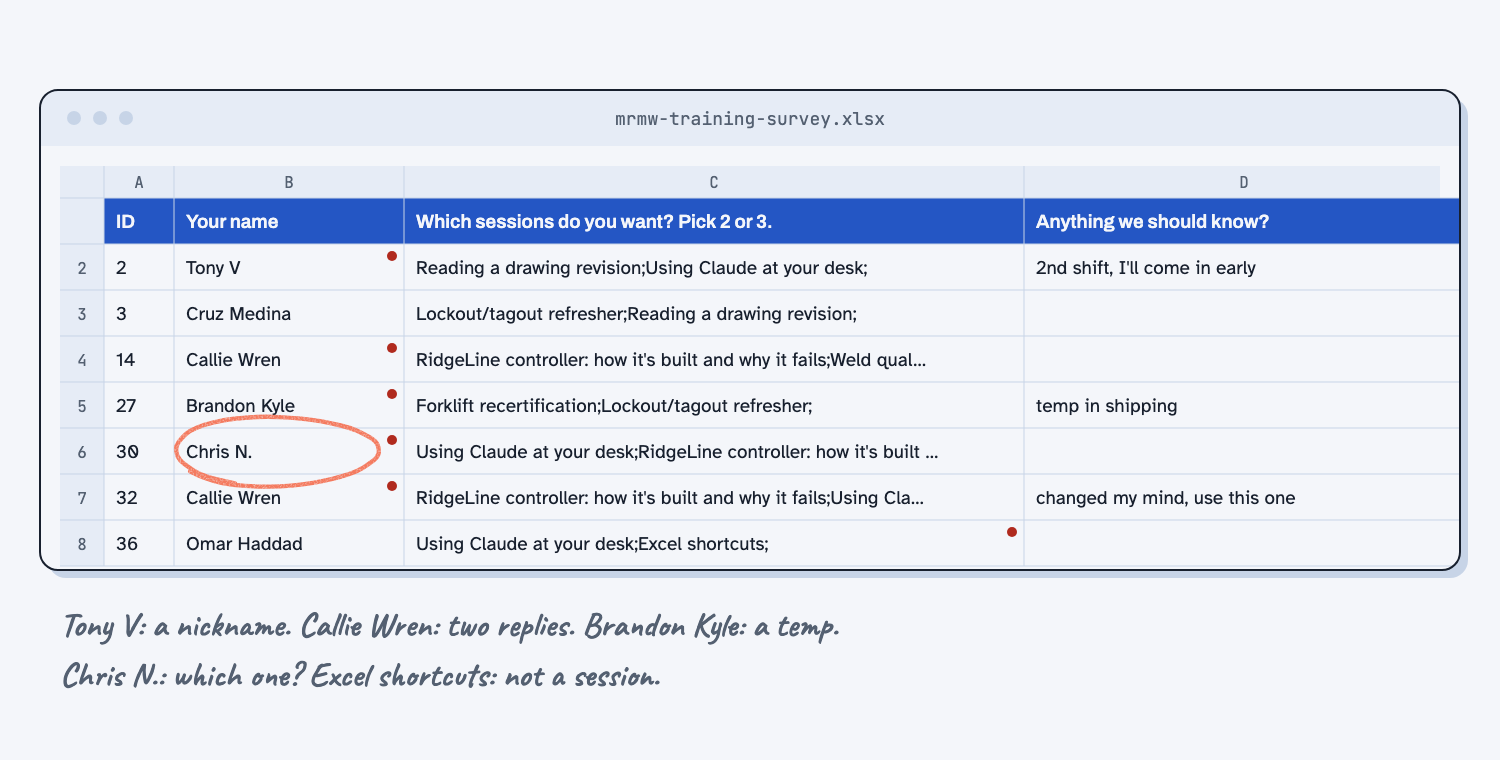
Open mrmw-training-survey.xlsx and close it without saving. Spend two minutes on it, because you will check Claude's work against what you see here. The names are in the Your name column, since the form's own Name column is blank when people answer without signing in.
Most names are fine. A few are traps. Reply 1 is "Marcus Whitfeild," with two letters swapped. Reply 2 is "Tony V," and the roster only has full names. Replies 14 and 32 are both Callie Wren, and the later one says "changed my mind, use this one." Reply 27 is Brandon Kyle, who wrote "temp in shipping" and is not on the roster. Reply 30 is "Chris N.," and Plant 1 has two Nguyens. Reply 36 picked "Excel shortcuts," which is not one of the six sessions.
Step 3. Start Claude Code in the folder and paste the prompt
Open a terminal, paste these two lines, and press Enter:
cd ~/Documents/training-day-names-sample
claude
Then paste the prompt below and press Enter. It tells Claude what each column of name-map.csv means and what to do with every kind of messy name. The first rule is the one that matters most: if Claude is not sure, it leaves the name blank or puts its best idea in the note, and it flags the row. The last rule keeps the Person confirmed column empty, because that column is yours.
This folder has a staff roster (mrmw-plant1-roster.xlsx), a sign-up survey export (mrmw-training-survey.xlsx), and the list of sessions people could pick (mrmw-training-sessions.xlsx). People typed their own names in the survey, so some do not match the roster.

Match each survey reply to one person on the roster. Write name-map.csv with these columns: Response ID, Survey name, Roster name, How matched, Needs person check, Person confirmed, Note.

Rules:
- Do not guess. If you are not sure, leave Roster name blank or put your best idea in Note, and set Needs person check to yes.
- Typos, nicknames, and initials get Needs person check = yes, with your best match in Roster name.
- If two roster people could match, leave Roster name blank, name both in Note, and set Needs person check to yes.
- If a name is not on the roster, leave Roster name blank and say so in Note.
- If someone answered twice, say in Note which reply is the later one.
- If the roster says the person is out on 12/11, say so in Note.
- If someone picked something that is not on the session list, say so in Note.
- Needs person check is only about the name. A reply sent twice, a person who is out, or a write-in pick goes in Note, not in Needs person check.
- Leave Person confirmed blank. I fill it in.
- Do not change the input files.

When you finish, list only the rows that need me, one line each. Then list the replies sent twice, the people who are out, and the write-in picks.
Claude reads the three files, writes name-map.csv, and lists the rows that need you. This takes from about one minute to about four minutes. If Claude asks to run a command or write a file, read what it wants to do and say yes.
Step 4. Read the short list of rows that need you
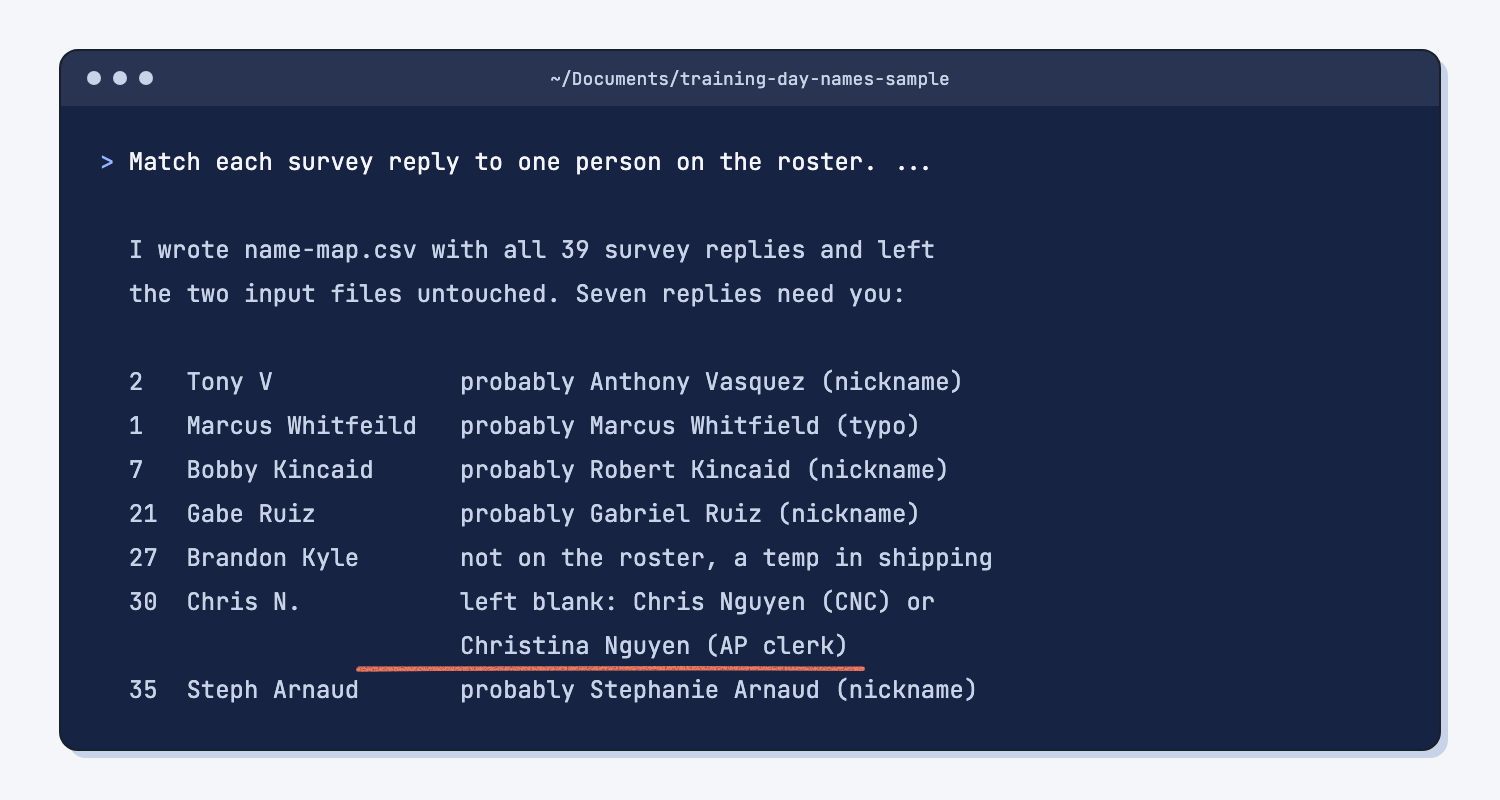
Claude ends with one line for each row it is not sure about, so you do not have to read all 39. Here is part of its reply on the sample files:
Rows that need you (7):
- 2, "Tony V": a nickname plus an initial. My best match is Anthony Vasquez, the 2nd shift lead, which fits his note "2nd shift, I'll come in early."
- 27, "Brandon Kyle": not on the roster, so Roster name is blank. He wrote "temp in shipping."
- 30, "Chris N.": two people could match, Chris Nguyen (CNC) and Christina Nguyen (AP clerk). Roster name is blank.
The other four lines are the typo and the three nicknames. Look closely at "Chris N.," because Claude names both Nguyens and picks neither, which is exactly what you want. After the list, Claude adds three things that need no answer from you: Callie Wren sent replies 14 and 32 and the later one is used, Victor Huerta is out on 12/11, and Omar Haddad's "Excel shortcuts" is not on the session list.
Step 5. Confirm the flagged rows you agree with
Open name-map.csv in Excel. Find the rows with yes in Needs person check, and for each one, decide if Claude's match is right. You know your people better than Claude does, so this is your call.
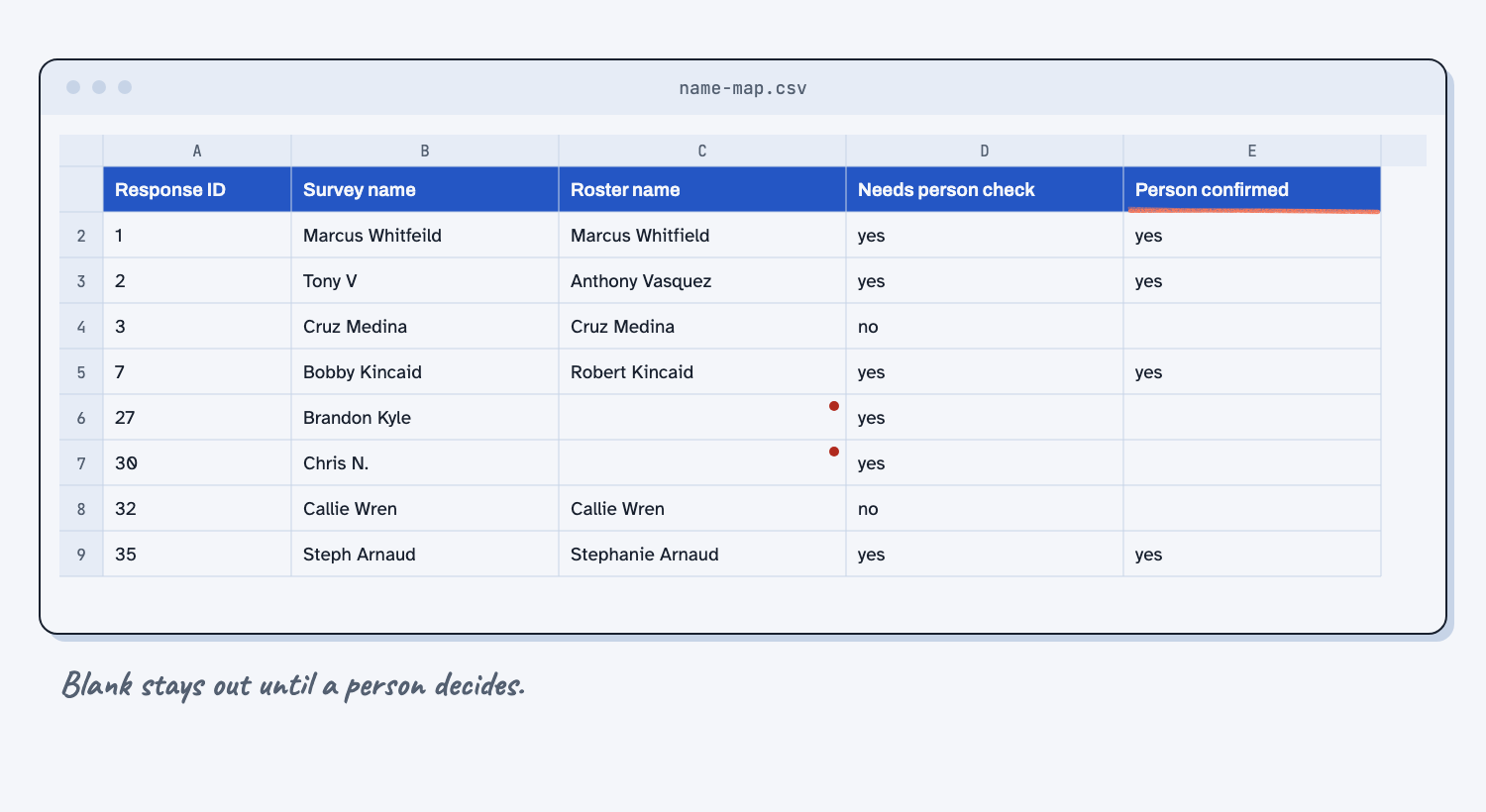
On the sample, type yes in Person confirmed for replies 1, 2, 7, 21, and 35, because each one has only one person on the roster it could be. Leave reply 30 ("Chris N.") blank, because nobody can tell from the sign-up which Nguyen it is, and you would ask before you schedule either one. Leave reply 27 (Brandon Kyle) blank too, because he is not on the roster. Save the file as a .csv when Excel asks.
Step 6. Check the map against the answer key
Open answer-key/name-map.csv next to your name-map.csv and compare the Roster name column row by row. All 39 should match, with replies 27 and 30 blank in both. The answer key marks the nicknames as safe while your map flags them, and that is fine, because the roster name is the same.
What does good look like?
With the sample files, a good map ties 35 replies to 35 people and sets four aside, each with its reason. Answer key, sample data.
| Reply | Typed name | Roster name | What you do |
|---|---|---|---|
| 1 | Marcus Whitfeild | Marcus Whitfield | Confirm (typo) |
| 2 | Tony V | Anthony Vasquez | Confirm (the only Vasquez) |
| 7, 21, 35 | Bobby Kincaid, Gabe Ruiz, Steph Arnaud | Robert Kincaid, Gabriel Ruiz, Stephanie Arnaud | Confirm (nicknames, one person each) |
| 14 | Callie Wren | Callie Wren | Nothing. The note says it is the earlier reply, so reply 32 is used |
| 18 | Victor Huerta | Victor Huerta | Nothing. The note says he is out on 12/11 |
| 27 | Brandon Kyle | (blank) | Leave blank. Not on the Plant 1 roster |
| 30 | Chris N. | (blank) | Leave blank until you ask. It could be Chris Nguyen or Christina Nguyen |
| 36 | Omar Haddad | Omar Haddad | Nothing. The note says "Excel shortcuts" is not a session |
Every other row is an exact match, including "jaylen brooks" in lower case and "Pham, Linh" typed last name first. You can open my sample name-map.csv to see a finished, confirmed map.
What can go wrong?
These are the mistakes to watch for on this kind of job.
- A guess on a two-way tie. If "Chris N." comes back as Chris Nguyen with no flag, the schedule will put the wrong person in a session. The prompt says to leave Roster name blank and name both, so check row 30 first.
- A nickname that slips through. "Bobby" for Robert is common, but a nickname match is still a guess. The prompt asks for a flag on every nickname, so you see each one.
- A missing note. If the notes do not name Callie Wren's later reply, Victor Huerta being out, and the "Excel shortcuts" write-in, part 2 can count Callie's picks twice, schedule Victor, or treat the write-in as a session. A prompt that does not mention the session list can miss the write-in, so keep that file in the folder.
How do I check the answer?
Check name-map.csv against the files and the answer key, not against Claude's summary in the terminal.
- The file has 39 rows, and the Roster name column matches the answer key on every row.
- Every row with yes in Needs person check has a note that says why.
- The notes on replies 14, 18, 32, and 36 name the duplicate, the person who is out, and the write-in.
- Person confirmed is blank everywhere except the rows you typed yes in.
- The sign-up and the roster still have the dates they had when you unzipped them, so nothing changed them.
Why does this way work?
It works because Claude does the one part that needs judgment, reading names people typed by hand, and writes its answer into a table that you check once. Here is the short "why" behind each habit.
AI for the fuzzy part, a saved table for the rest. A lookup formula in Excel cannot tell that "Tony V" is Anthony Vasquez, but Claude can, because it reads the note "2nd shift" and sees that he is the second shift lead. Once the answer is in name-map.csv, nothing has to guess again. A script that reads the map gets the same answer every time, which is what deterministic means, so the schedule in part 2 is built on names that do not change between runs.
Flag it, and never guess. A wrong name is a quiet mistake, because the schedule looks fine until the wrong Nguyen walks into the wrong room. A blank name with a flag is loud, because you see it right away. That is the same reason you make bad data stop the script instead of letting it fill in a value it is not sure of.
The person confirms the flagged rows. Claude clears the 32 rows that are plain, and you look only at the seven that need a person. You decide ahead of time what counts as sure, which is how human in the loop works: your attention goes to the exceptions, not to all 39 rows.
Keep the replies that do not fit on a list, with the reason. Every row that cannot be used keeps its note, such as "not on the Plant 1 roster" or "earlier reply, not used." When someone asks why Brandon Kyle is not on the schedule, you can point to the row, which is why it helps to show the evidence rows behind every count. It is also a small case of cleaning the data before AI plans with it.
Frequently asked questions
Does this work for a safety sign-in sheet or training records?
Yes. Any list where people wrote their own names works the same way, such as a sign-in sheet from a toolbox talk, a training record from a class, or a badge list from the front desk. Change "survey reply" in the prompt to "sign-in line" or "training record," and keep the rules about flags and blanks.
Why not use VLOOKUP or a fuzzy match in Excel?
VLOOKUP finds exact names only, so it misses "Tony V" and "Bobby Kincaid." A fuzzy match finds close spellings, but it can match "Chris N." to one Nguyen without telling you there were two. Claude reads the notes too and says when it is not sure.
Can I use the same method for other matching jobs?
Yes. The same habits work for matching a customer's part descriptions to your item numbers, or matching crew members on a whiteboard to work stations. Claude makes the map, flags what it is not sure of, and a person confirms the flagged rows before anything uses the map.
Does it work with ChatGPT?
Yes, if your plan can read Excel files. Attach the three files, paste the same prompt, and ask for name-map.csv as a file to download.
What do I do about the rows I left blank?
Ask. For "Chris N.," send one short message to both Nguyens or their supervisors, and fill in the right name when you hear back. Until then, that reply stays out of the schedule.
Take this with you
One prompt for any sign-up, survey, or sign-in sheet where people typed their own names. Put the roster, the export, and the list of choices in one folder, start Claude Code there, and paste this.
This folder has a staff roster (mrmw-plant1-roster.xlsx), a sign-up survey export (mrmw-training-survey.xlsx), and the list of sessions people could pick (mrmw-training-sessions.xlsx). People typed their own names in the survey, so some do not match the roster.

Match each survey reply to one person on the roster. Write name-map.csv with these columns: Response ID, Survey name, Roster name, How matched, Needs person check, Person confirmed, Note.

Rules:
- Do not guess. If you are not sure, leave Roster name blank or put your best idea in Note, and set Needs person check to yes.
- Typos, nicknames, and initials get Needs person check = yes, with your best match in Roster name.
- If two roster people could match, leave Roster name blank, name both in Note, and set Needs person check to yes.
- If a name is not on the roster, leave Roster name blank and say so in Note.
- If someone answered twice, say in Note which reply is the later one.
- If the roster says the person is out on 12/11, say so in Note.
- If someone picked something that is not on the session list, say so in Note.
- Needs person check is only about the name. A reply sent twice, a person who is out, or a write-in pick goes in Note, not in Needs person check.
- Leave Person confirmed blank. I fill it in.
- Do not change the input files.

When you finish, list only the rows that need me, one line each. Then list the replies sent twice, the people who are out, and the write-in picks.
Before you paste it, change the three file names to yours and the date in "out on 12/11" to your date. When Claude finishes, open name-map.csv, type yes in Person confirmed for each flagged row you agree with, leave the rest blank, and ask about the blanks before you use the map.
What's next?
- Schedule a training day so nobody is double-booked, part 2 of this series: your rules on one page, a solver that Claude writes, and a check that proves every rule holds.
- Turn your open-orders export into a twin orders file, the same "set bad rows aside, never guess" habit on an ERP export.
- Clean an ERP export in Excel with Claude, for messy files that need cleaning before you ask anything of them.
- Human in the loop, explained, the idea behind confirming only the rows that need you.