- Claude Code
Harness. An AI helper that works in a folder of files. It writes and fixes code, and some office people use it to build small tools.
Answer. To turn an open-orders export into a twin orders file, have Claude Code write a small script that maps your ERP columns to the twin's seven columns and sets aside every row it cannot use, with the reason. Then have the twin load the file and check what the twin does not catch. You end with a checked open-orders.csv.
Time and cost. 25 minutes the first time, about 5 each week after. You need Claude Pro or higher, with Claude Code and twin-flow set up. Who this is for. Planners and plant managers who want to run a digital twin on their real open orders, not a sample.
This is part 2. In part 1, ask a sample shop twin "what if?", you ran a made-up shop in twin-flow with Claude Code. A twin is only as good as the orders you feed it, and your ERP export was built for a person to read, not for a program. It has title rows on top, dates typed four different ways, a closed order that is still on the report, and the same line twice.
In this guide, Hector Lee, the planner at Mesquite Ridge Metal Works (a made-up company), has Monday's open-orders export for the CNC machine shop. Claude Code turns it into the twin's orders file and lists the rows it could not use. Nothing gets guessed, and you can run the same script on next week's export.
What will I learn besides making an orders file?
You will learn five methods that work on any export you feed to a program, with a short "why" for each later in this guide.
- Clean the data before it goes in. The twin's answer is only as good as its orders.
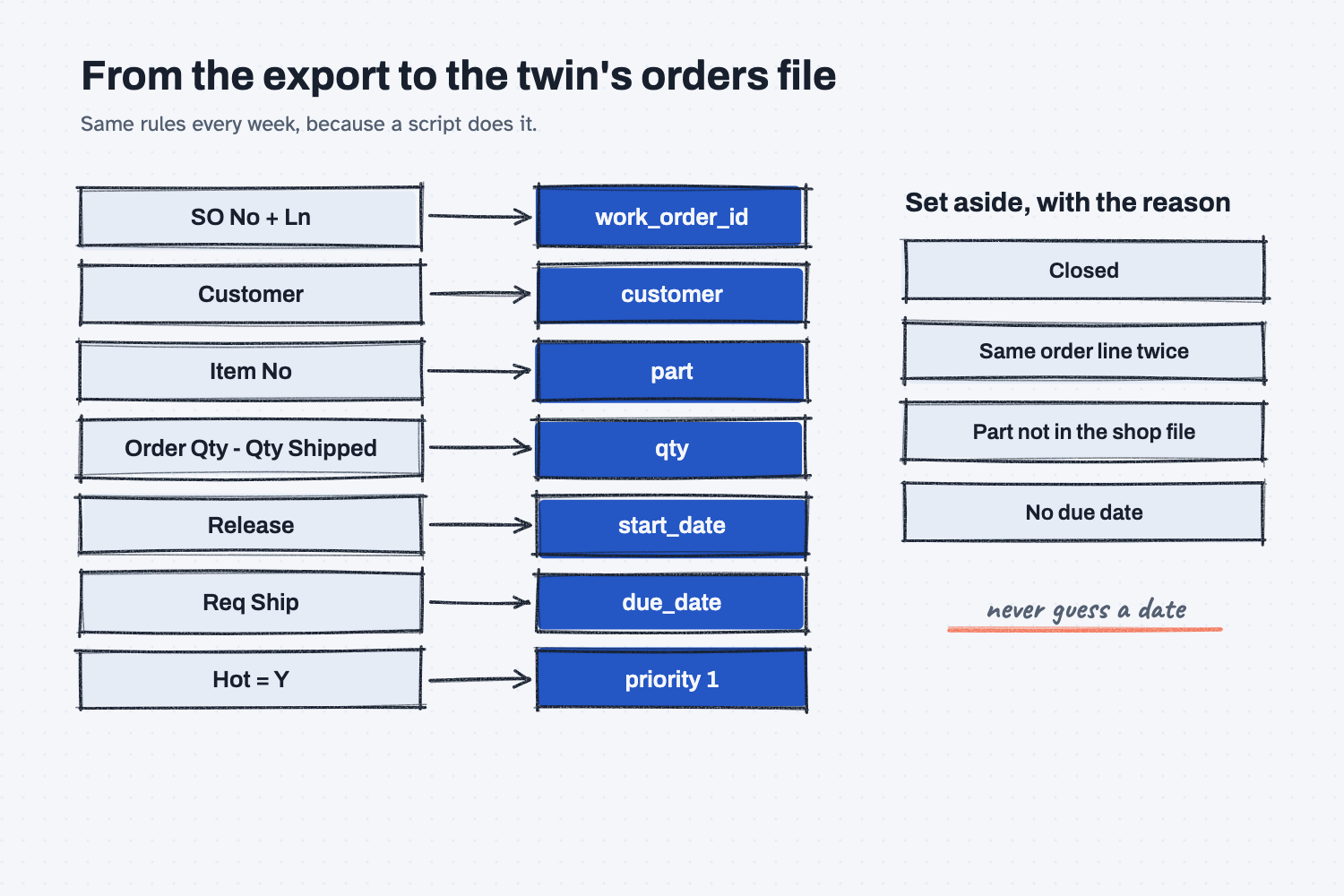
- Map to a fixed shape. Seven columns, the same names, the same order, every week.
- Have AI build the tool once. Claude writes the mapping script, and the script does the work each week.
- Set bad rows aside, and never guess. Every row that does not fit goes on a list with its reason.
- Check with the tool and with your own checks. The twin catches some problems, and a short check catches the rest.
What do I need before I start?
You need Claude Code and twin-flow set up, plus two sample files.
- Claude Code and twin-flow, with twin-flow in a
twin-labfolder in your home folder. If you have not set them up yet, follow Install Claude Code and Install twin-flow first (about 10 minutes each, once). If you need a terminal, see Open a terminal. - The export: mrmw-open-orders-2026-11-16.xlsx, Mesquite Ridge's open sales order lines for Plant 1, Bay 1, from a made-up ERP called ShopLine.
- The shop file: mesquite-ridge-shop.yaml, the twin of that CNC shop. It lists the machines, people, shifts, and the three parts Bay 1 makes: MR-1015 drive shafts, MR-1020 manifold blocks, and RL-215 housing covers.
Safe use. These files are made up. Real open orders hold customer names and dates, and Claude Code sends what it reads to Claude. Check your company's AI rules before you use a real export. Read the safe use notes.
How do I turn an open-orders export into a twin orders file?
Put the export and the shop file in one folder, start Claude Code there, and paste two prompts: one that writes and runs the mapping script, and one that checks the result with the twin. Eight steps.
Step 1. Make a folder for the Mesquite Ridge files
Open a terminal, paste this, and press Enter:
cd ~/twin-lab
mkdir mesquite-ridge
The new folder sits next to the twin-flow folder, which is where the prompts expect it.
Step 2. Put the two sample files in the folder
Download the export and the shop file from the list above. Then move them into mesquite-ridge by dragging them in Finder or File Explorer, or paste the command for your computer.
On a Mac:
mv ~/Downloads/mrmw-open-orders-2026-11-16.xlsx ~/Downloads/mesquite-ridge-shop.yaml ~/twin-lab/mesquite-ridge/
On Windows:
Move-Item ~/Downloads/mrmw-open-orders-2026-11-16.xlsx, ~/Downloads/mesquite-ridge-shop.yaml ~/twin-lab/mesquite-ridge/
Step 3. Look at the export before Claude does
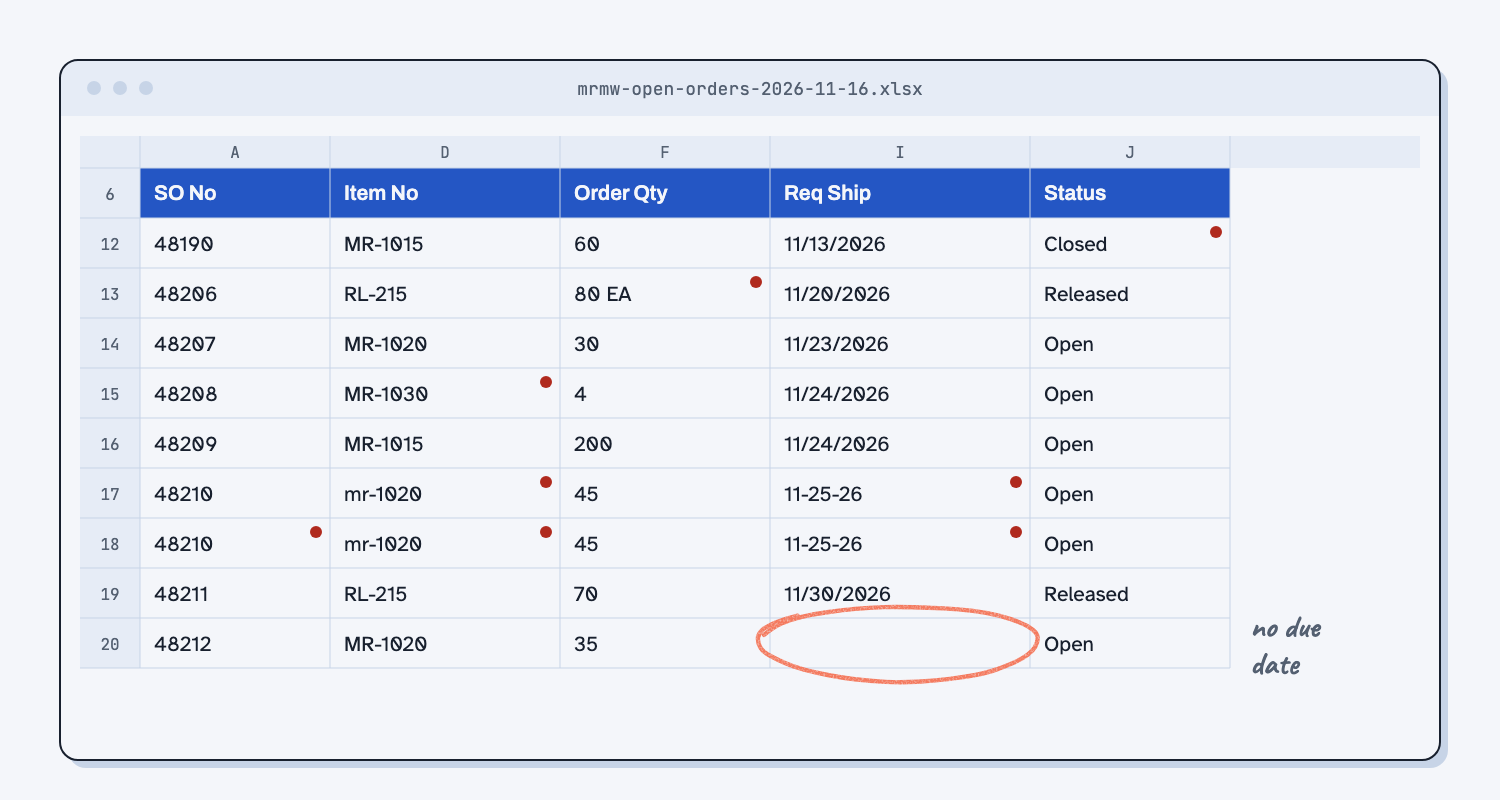
Open the export in Excel and close it without saving. Spend two minutes on it, because you will check Claude's work against what you see here.
The column names are on row 6, under four title rows and a blank one. Row 12 is Closed. Row 13 says "80 EA." Row 15 is MR-1030, a welded frame from the fab shop, not a part Bay 1 makes. Rows 17 and 18 are the same order line twice. Row 20 has no due date. The dates come five ways, and row 25 is a total with a formula in it.
Step 4. Start Claude Code in the Mesquite Ridge folder
Paste this and press Enter:
cd ~/twin-lab/mesquite-ridge
claude
Claude Code asks before it runs each command or writes a file. Say yes to the commands in the prompts, and say no to anything that would change the export or the shop file.
Step 5. Have Claude write and run the mapping script
Paste the prompt below. It names the twin's seven columns, says how to fill each one, and lists the five reasons to set a row aside. It also asks Claude to do the work with a small script, so next week's export goes through the same way. This takes about half a minute.
Turn the ShopLine ERP export in this folder, mrmw-open-orders-2026-11-16.xlsx, into an orders file for the twin. The twin's shop file is mesquite-ridge-shop.yaml.

Do it with a small Python script, so next week's export goes through the same way:
1. Write the script as map_orders.py. Run it with: uv run --project ../twin-flow python map_orders.py
2. Do not change the export or the shop file.

The orders file is open-orders.csv, with exactly these columns in this order:
work_order_id,customer,part,qty,start_date,due_date,priority

How each column is filled:
- work_order_id: SO- plus the SO No, a dash, and the Ln. Example: SO-48201-1
- customer: the Customer column.
- part: the Item No, with spaces taken off and in capital letters.
- qty: the open quantity, which is Order Qty minus Qty Shipped, as a whole number. Some quantities have words after the number, like EA.
- start_date: the Release column. due_date: the Req Ship column. Write both as YYYY-MM-DD. The dates come in more than one format. Read each one carefully and never guess.
- priority: 1 if Hot is Y, otherwise 0.

The rows above the column names and the total lines at the bottom are not orders. Skip them.

Leave a row out of the orders file, and write it to rows-not-used.csv with the columns export_row,so_no,line,part,reason, when:
- its Status is Closed
- it has the same SO No and Ln as an earlier row (keep the first one)
- its part is not in the routing of mesquite-ridge-shop.yaml
- its due date is blank or is not a date
- its open quantity is 0 or less
export_row is the row number you see in Excel. Never fill in a missing date or quantity.

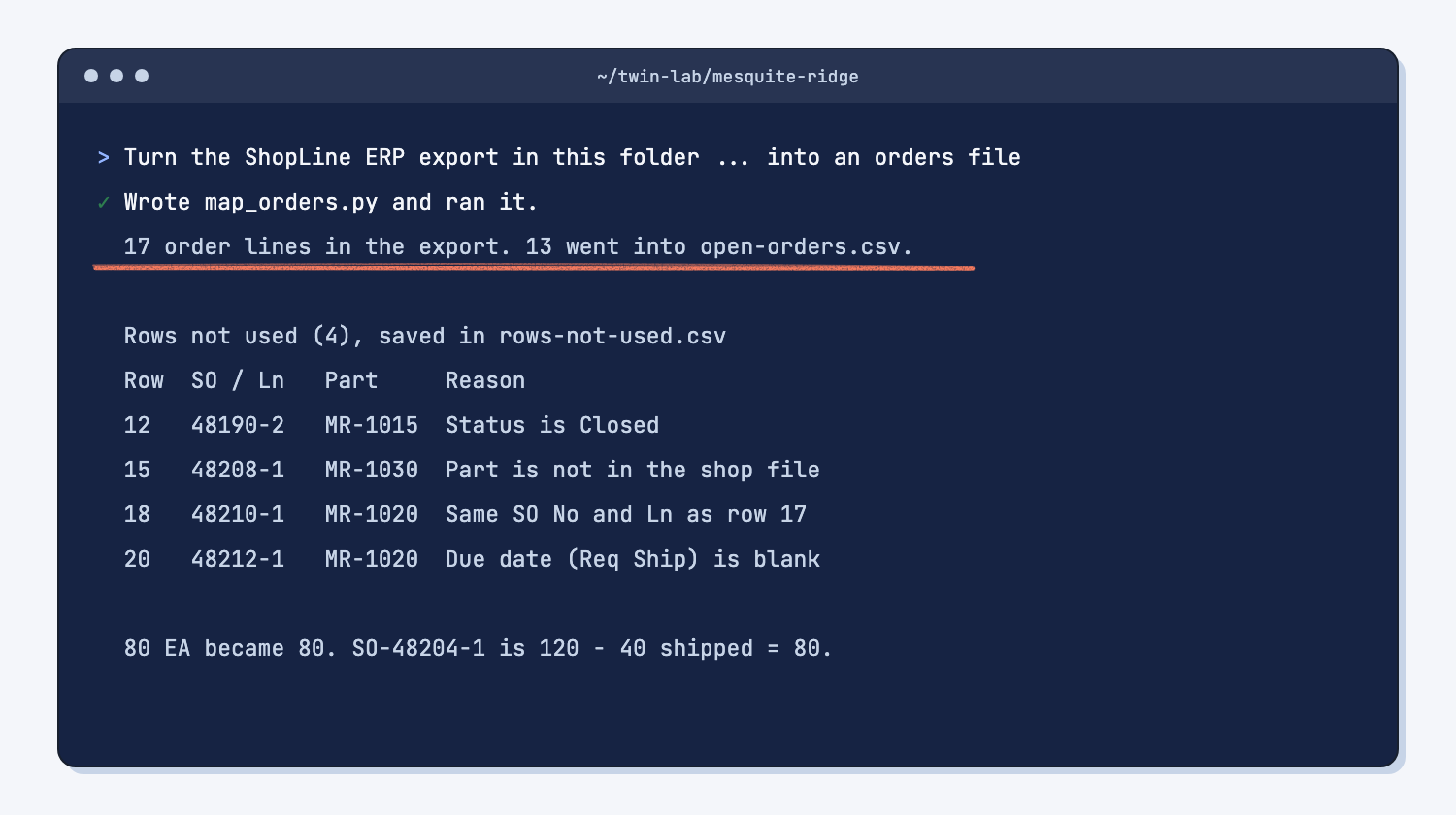
Then tell me, in plain words: how many order lines the export has, how many went into open-orders.csv, and a table of the rows not used with the reason for each.
Claude writes map_orders.py, runs it, and makes two files: open-orders.csv for the twin and rows-not-used.csv for you.
Step 6. Spot-check three orders against the export
Check three rows by hand before you trust the file. Ask Claude Code, "Show me open-orders.csv," and compare.
- SO-48204-1 should have qty 80, because 120 were ordered and 40 have shipped.
- SO-48207-1 should have priority 1, because it is the only row marked Hot.
- SO-48210-1 should be there once, due 2026-11-25, from the date typed "11-25-26."
Then read the reasons in rows-not-used.csv. Each one should match what you saw in Step 3. Claude may tell you it added a rule or two of its own, such as setting aside a row with no release date. Read what it says it added, and keep it only if it makes sense for your shop.
Step 7. Have the twin check the file
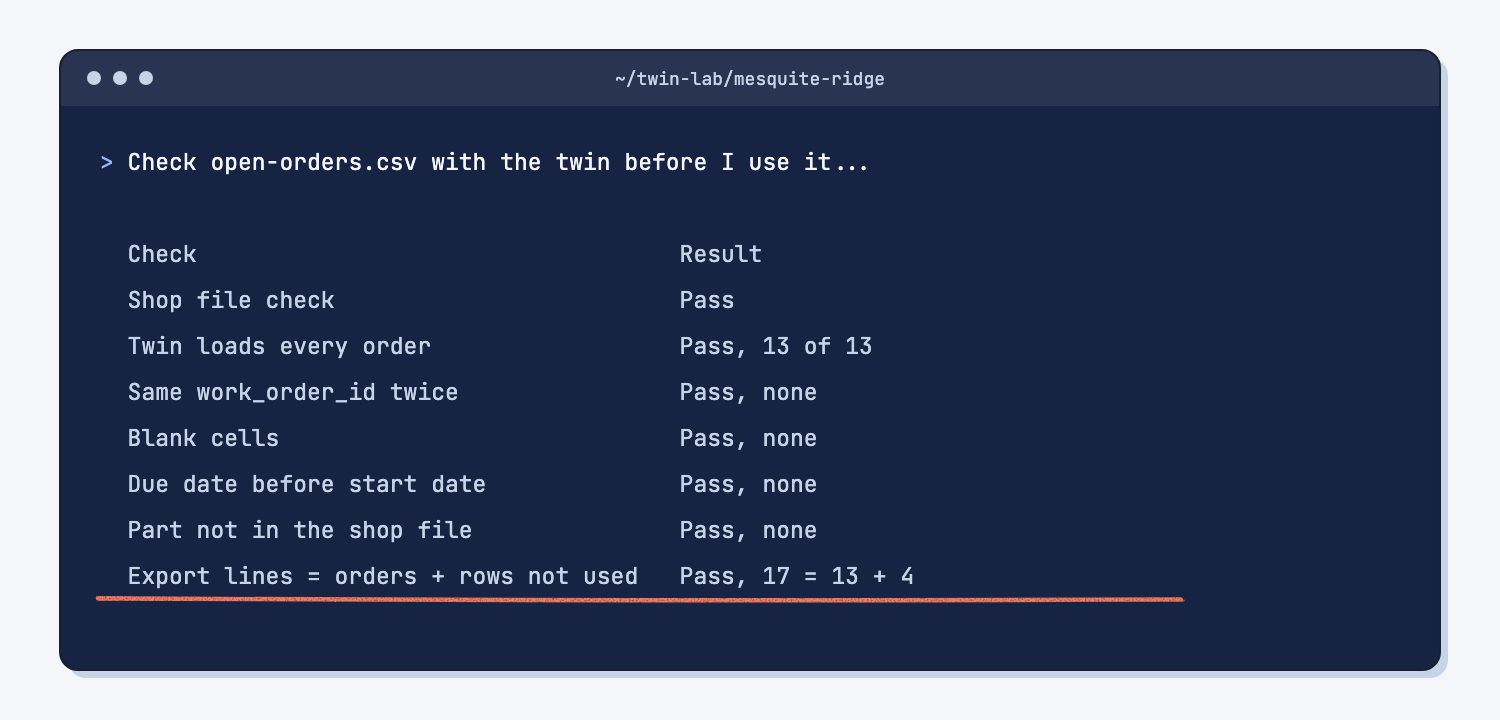
Paste the second prompt. It runs the twin's own check of the shop file, has the twin load every order once, and then checks the things the twin does not catch on its own.
Check open-orders.csv with the twin before I use it. Do not change any file. The twin saves its run in a runs folder, and that is fine.

1. Check the shop file: uv run --project ../twin-flow twinflow validate mesquite-ridge-shop.yaml
   No output means it passed.
2. Have the twin load every order with one run: uv run --project ../twin-flow twinflow run mesquite-ridge-shop.yaml --plan open-orders.csv --reps 1 --orders
   If it stops with an error, show me the error line and the row it names, and stop there.
3. The twin does not catch every problem, so check these too, with a short script: two orders with the same work_order_id, any blank cell, a due_date before its start_date, a part that is not in the shop file, and the number of orders in the file against the number the twin says it loaded.
4. Check the count: the order lines in the export should equal the orders in open-orders.csv plus the rows in rows-not-used.csv.

Reply in plain words for someone who does not code: a short table with pass or fail for each check, then the rows-not-used list with the reasons. Do not tell me which orders will be late. This is only a check of the file.
Claude replies with a table of checks, each marked pass or fail, and the rows-not-used list.
Step 8. Keep the script for next week
Leave map_orders.py in the folder with the export, the shop file, and the two files it made.
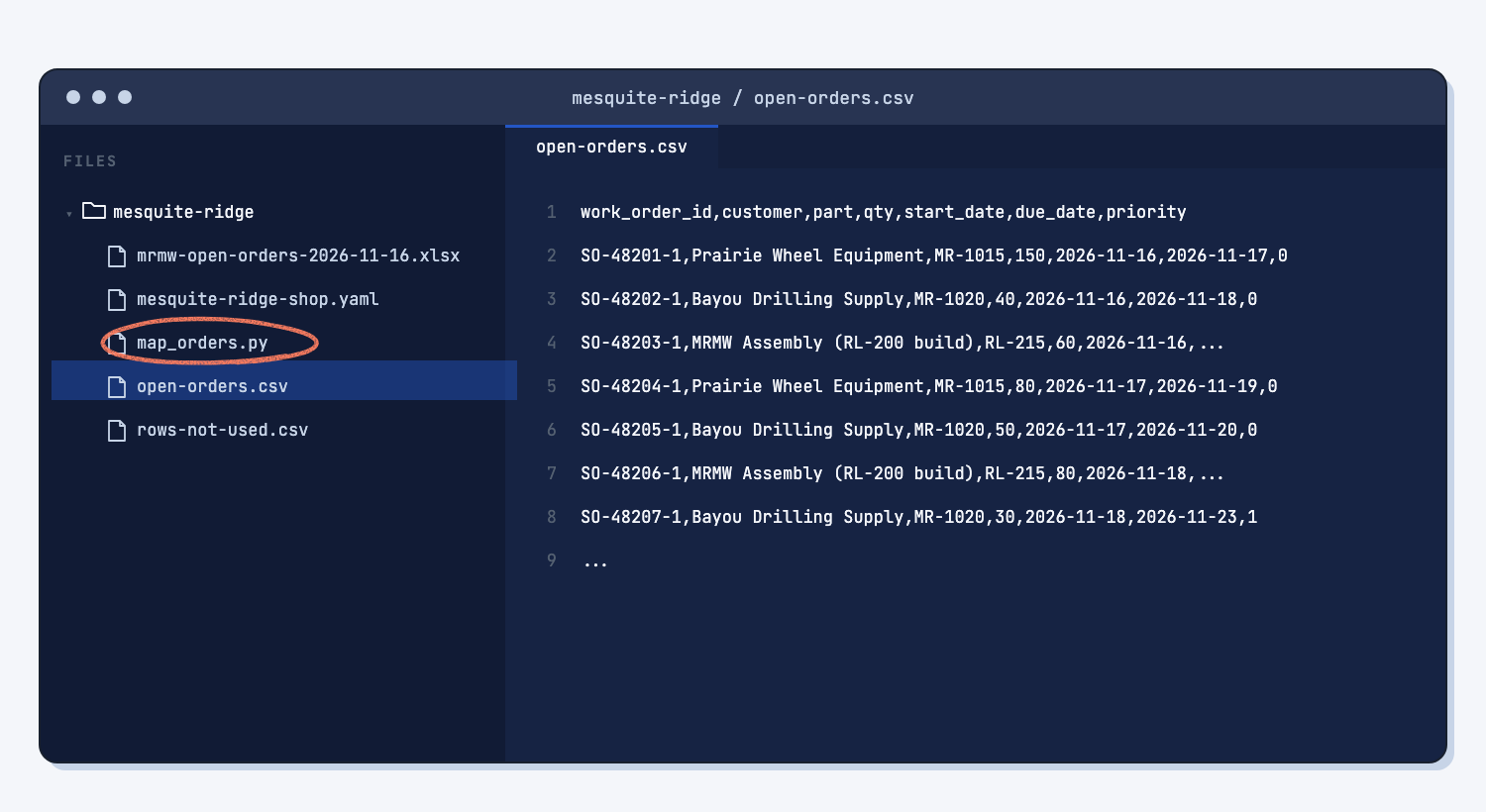
Next Monday, save the new export in mesquite-ridge and tell Claude Code: "Run map_orders.py on the new export, then do the check again." The rows that need a person, like a missing due date, go to customer service before the file goes to the twin. Type /exit when you are done.
What does good look like?
With the sample export, you get 13 orders in open-orders.csv and 4 rows set aside. Answer key, sample data. You can open the answer-key orders file and the rows not used to compare.
| Export row | Order line | Part | Why it was set aside |
|---|---|---|---|
| 12 | 48190, line 2 | MR-1015 | Closed, already shipped in full |
| 15 | 48208, line 1 | MR-1030 | Not in the shop file, it is a fab part |
| 18 | 48210, line 1 | MR-1020 | Same order line as row 17 |
| 20 | 48212, line 1 | MR-1020 | No due date |
The orders file starts like this. Every date is written as year, month, day, and every quantity is the amount still open.
| work_order_id | customer | part | qty | start_date | due_date | priority |
|---|---|---|---|---|---|---|
| SO-48201-1 | Prairie Wheel Equipment | MR-1015 | 150 | 2026-11-16 | 2026-11-17 | 0 |
| SO-48204-1 | Prairie Wheel Equipment | MR-1015 | 80 | 2026-11-17 | 2026-11-19 | 0 |
| SO-48207-1 | Bayou Drilling Supply | MR-1020 | 30 | 2026-11-18 | 2026-11-23 | 1 |
Every check in Step 7 passes, and 17 export lines equal 13 orders plus 4 set aside.
What can go wrong?
The twin is strict about some problems and silent about others, which is why the guide uses both a script and a check.
- The export goes to the twin as it is. The twin stops with "missing required column(s)," because the column names are on row 6, not row 1. It also refuses the total row, because that cell holds a formula.
- A blank due date gets through. The twin stops with "could not convert string to float," which does not say which row is wrong. The script sets the row aside first and names it.
- A duplicate gets through. The twin loads two copies of the same order without any error and counts them as one. That is why Step 7 compares the orders in the file with the orders the twin loaded.
- A date could mean two days. "03-04-26" could be March 4 or April 3. Your script should set a date like that aside, not guess. Ask Claude how its script reads dates if your export uses dashes.
- Excel changes the dates. If you open
open-orders.csvin Excel and save it, Excel may rewrite 2026-11-25 as 11/25/2026, and the twin will refuse it. Look at the file in Claude Code instead, or close Excel without saving. - The part list changes. A new part that is not in the shop file goes to rows-not-used.csv every week. That is correct. The fix is to add the part to the shop file, not to the orders file.
How do I check the answer?
Check the file against the export and the twin, not against Claude's summary.
- The count adds up: export lines equal orders plus rows set aside.
- Each set-aside row has a reason you can see in the export.
- Three orders you picked match the export by hand.
- The twin loaded every order, and the number it loaded matches the file.
Why does this way work?
It works because the messy part happens once, in a script you can see, and the twin only ever gets a clean file. Here is the short "why" behind each method.
Clean the data before it goes in. A twin that reads a closed order or a duplicate will report a late order that does not exist, and it will look just as sure of itself. That is why you clean the data before AI or any tool uses it.
Map to a fixed shape. The twin's orders file has seven named columns, and the prompt says exactly how to fill each one. A fixed shape is what lets a program read your data the same way every time, which is the idea behind structured output.
Have AI build the tool once. You could ask Claude to clean the export by hand every Monday, and you would get a slightly different result each week. Instead, Claude writes map_orders.py once, and the script gives the same output for the same export every time, which is what deterministic means. That is using AI to build a tool instead of asking it for the answer every time.
Set bad rows aside, and never guess. A missing due date is a question for customer service, not something to fill in. The script puts each bad row on a list with its reason, so a person sees it, which is how you make bad data stop the script instead of sneaking through.
Check with the tool and with your own checks. The twin catches bad dates and unknown parts, but it lets a duplicate through. Your own short checks cover the gap. You planned the checks, Claude ran them, and you both read the results, which is humans plan, AI does.
Frequently asked questions
My ERP export has different column names. Does this still work?
Yes. In the prompt, change the column names to the ones your export uses, such as "Sales Order" for "SO No." The seven twin columns stay the same. If your export has no line number, use the order number alone as the work order ID.
Can I give the twin the .xlsx file directly?
Only if row 1 holds the seven column names and there are no title rows, totals, or formulas. Most ERP exports are not like that, so the script makes a clean CSV (a plain text table) first.
Why does the closed order show up on an open-orders report?
Many ERPs keep a line on the open report until someone closes it in the system, even after it ships in full. The script uses the Status column and the shipped quantity, so it does not matter why it is there.
What do I do with the rows that were set aside?
Send each one to whoever can fix it. A missing due date goes to customer service. A part that is not in the shop file means the shop file needs that part. Then run the script again.
Do I need part 1 first?
No, but you need the same setup. Follow Install Claude Code, Install Python and uv, and Install twin-flow once, and this guide uses the twin-lab folder they make. Part 1 is a good way to see the twin work first.
Take this with you
Two prompts and one script. Together they turn any week's export into a checked orders file.
1. The mapping prompt. Change the file names and column names to match your export.
Turn the ShopLine ERP export in this folder, mrmw-open-orders-2026-11-16.xlsx, into an orders file for the twin. The twin's shop file is mesquite-ridge-shop.yaml.

Do it with a small Python script, so next week's export goes through the same way:
1. Write the script as map_orders.py. Run it with: uv run --project ../twin-flow python map_orders.py
2. Do not change the export or the shop file.

The orders file is open-orders.csv, with exactly these columns in this order:
work_order_id,customer,part,qty,start_date,due_date,priority

How each column is filled:
- work_order_id: SO- plus the SO No, a dash, and the Ln. Example: SO-48201-1
- customer: the Customer column.
- part: the Item No, with spaces taken off and in capital letters.
- qty: the open quantity, which is Order Qty minus Qty Shipped, as a whole number. Some quantities have words after the number, like EA.
- start_date: the Release column. due_date: the Req Ship column. Write both as YYYY-MM-DD. The dates come in more than one format. Read each one carefully and never guess.
- priority: 1 if Hot is Y, otherwise 0.

The rows above the column names and the total lines at the bottom are not orders. Skip them.

Leave a row out of the orders file, and write it to rows-not-used.csv with the columns export_row,so_no,line,part,reason, when:
- its Status is Closed
- it has the same SO No and Ln as an earlier row (keep the first one)
- its part is not in the routing of mesquite-ridge-shop.yaml
- its due date is blank or is not a date
- its open quantity is 0 or less
export_row is the row number you see in Excel. Never fill in a missing date or quantity.

Then tell me, in plain words: how many order lines the export has, how many went into open-orders.csv, and a table of the rows not used with the reason for each.
2. The check prompt.
Check open-orders.csv with the twin before I use it. Do not change any file. The twin saves its run in a runs folder, and that is fine.

1. Check the shop file: uv run --project ../twin-flow twinflow validate mesquite-ridge-shop.yaml
   No output means it passed.
2. Have the twin load every order with one run: uv run --project ../twin-flow twinflow run mesquite-ridge-shop.yaml --plan open-orders.csv --reps 1 --orders
   If it stops with an error, show me the error line and the row it names, and stop there.
3. The twin does not catch every problem, so check these too, with a short script: two orders with the same work_order_id, any blank cell, a due_date before its start_date, a part that is not in the shop file, and the number of orders in the file against the number the twin says it loaded.
4. Check the count: the order lines in the export should equal the orders in open-orders.csv plus the rows in rows-not-used.csv.

Reply in plain words for someone who does not code: a short table with pass or fail for each check, then the rows-not-used list with the reasons. Do not tell me which orders will be late. This is only a check of the file.
3. A sample script like the one Claude writes: map_orders.py. It reads the sample export. Your own will differ, so have Claude write yours from the prompt.
Every Monday: save the export in the folder, have Claude run map_orders.py on it, run the check, and send the set-aside rows to the people who can fix them.
What's next?
- Ask a sample shop twin "what if?", part 1: test fixes on a sample shop.
- Measure today before you change anything, the next step: run your orders through the twin and save today's numbers.
- Turn a messy ERP export into a clean report, the same clean-up idea in Excel.
- Clean the data before AI uses it, the idea behind this guide.
- What is a digital twin?, what the orders file feeds.