AI in Excel, Word, and PowerPoint, Explained: Why It Works in the Open File
With Josh Schultz ·
Answer. AI in Excel, Word, and PowerPoint, explained: an add-in is a small program in a side panel that lets an AI assistant read the file you have open and change it right there, instead of working on a pasted copy. That is faster, and it also means the AI can edit your real file, so you need to check what it changed.
The picture
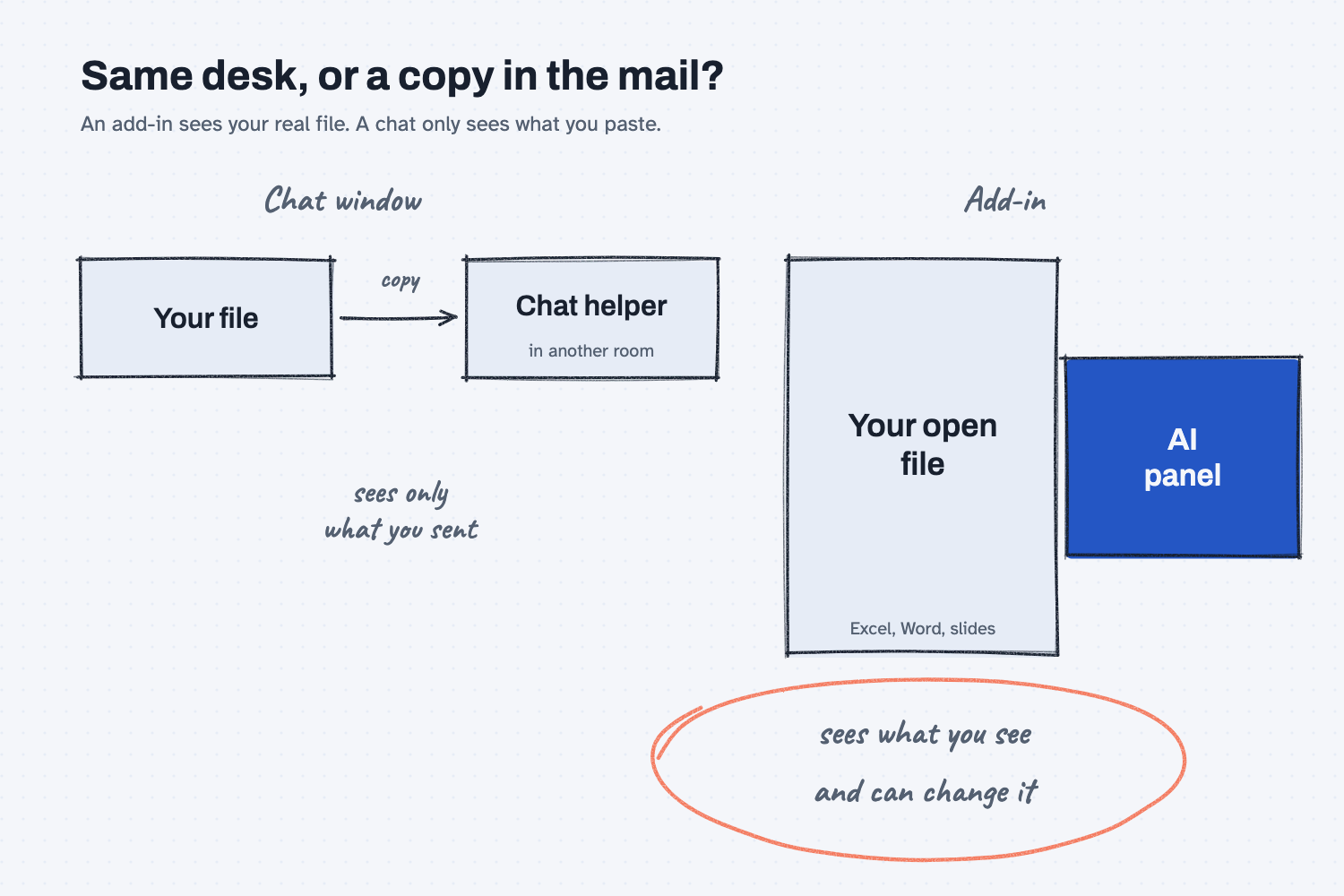
The left side shows the way most people use AI today. You copy something out of your file, paste it into a chat, and carry the answer back by hand, so the AI only ever sees the copy you sent. The right side shows an add-in. The AI sits in a panel next to the file you have open, so it sees the same rows, formulas, and slides that you see. The circled note matters most, because a helper who can reach the real file can also change the real file.
Think of it like this
Imagine two ways of getting help with a price sheet. In the first, a helper sits in another room, and you mail over a copy of the sheet whenever you have a question. They can only work from what you sent, so if you forgot a hidden column, they never knew it was there, and anything they fix has to be carried back to your original by you.
In the second, the helper pulls up a chair at your own desk and looks at the same screen. You can say "fix the steel bar prices in column C," and they know exactly what you mean. The cost is that they have a pen in their hand and your real sheet in front of them. A good helper at your desk is wonderful, but you would still glance at what they wrote before you send the sheet to a customer.
Why does it matter at work?
It matters because most office work lives inside files, so an AI that can work inside the file saves the copying, the pasting, and the errors that come with both. It also changes where the risk sits, because a chat can only give you a wrong answer, while an add-in can leave a wrong number in your sheet.
Here is an example. Hector Lee, the planner at Mesquite Ridge Metal Works, keeps a purchasing workbook with a tab for each supplier. With an Excel add-in he can ask where a total comes from and get an answer that points to the exact cells. Anthropic's help page for Claude in Excel says its answers include cell-level citations you can click, and that it changes values while keeping the formulas that depend on them intact. Hector can then ask it to build a summary of late orders and, in the same conversation, have it turn that summary into a few slides or a memo draft, because the help pages say these add-ins can read from one open file and write to another.
The same pages also say what the add-in is not for. They do not recommend it for final client deliverables without a person reviewing them, or for calculations where an audit depends on the result, unless you verify them. That advice is a good rule for any AI tool inside a file.
How does it work?
There are four ideas to hold on to: where it lives, what it can touch, where your data goes, and what it will not catch.
It lives in a side panel. You install the add-in from the store of your Office or Google account, open the panel, and sign in. Your company may control who can install it, so ask IT before you go looking. The same idea exists for Microsoft's apps and for Google's, though each has its own steps, and the menu names change from time to time, so look for the add-in or extension store inside the app.
It can only touch what is open. The help pages say the AI works with the files you have open at that moment, and that it cannot open or close files for you. This is a helpful limit, because you always know which files are in play. If a coworker's workbook is not open, it is out of reach.
Your content travels. The add-in sends what it reads, which can include cells, slides, and emails, to Anthropic so the AI can respond. The help pages also say these add-ins do not inherit custom data retention settings that your company may have set. That means a rule IT applied to the chat app may not apply here, which is a good question to put to IT before anyone uses it on customer prices.
It can be fooled by the file itself. The Excel page carries a warning to use the add-in only with trusted spreadsheets, because a file from outside can hide instructions meant to trick an AI into extracting data or changing records. A vendor price file you downloaded is outside your control, so treat it with more care than your own workbook. The add-in asks you to confirm risky actions, and those prompts deserve a real read.
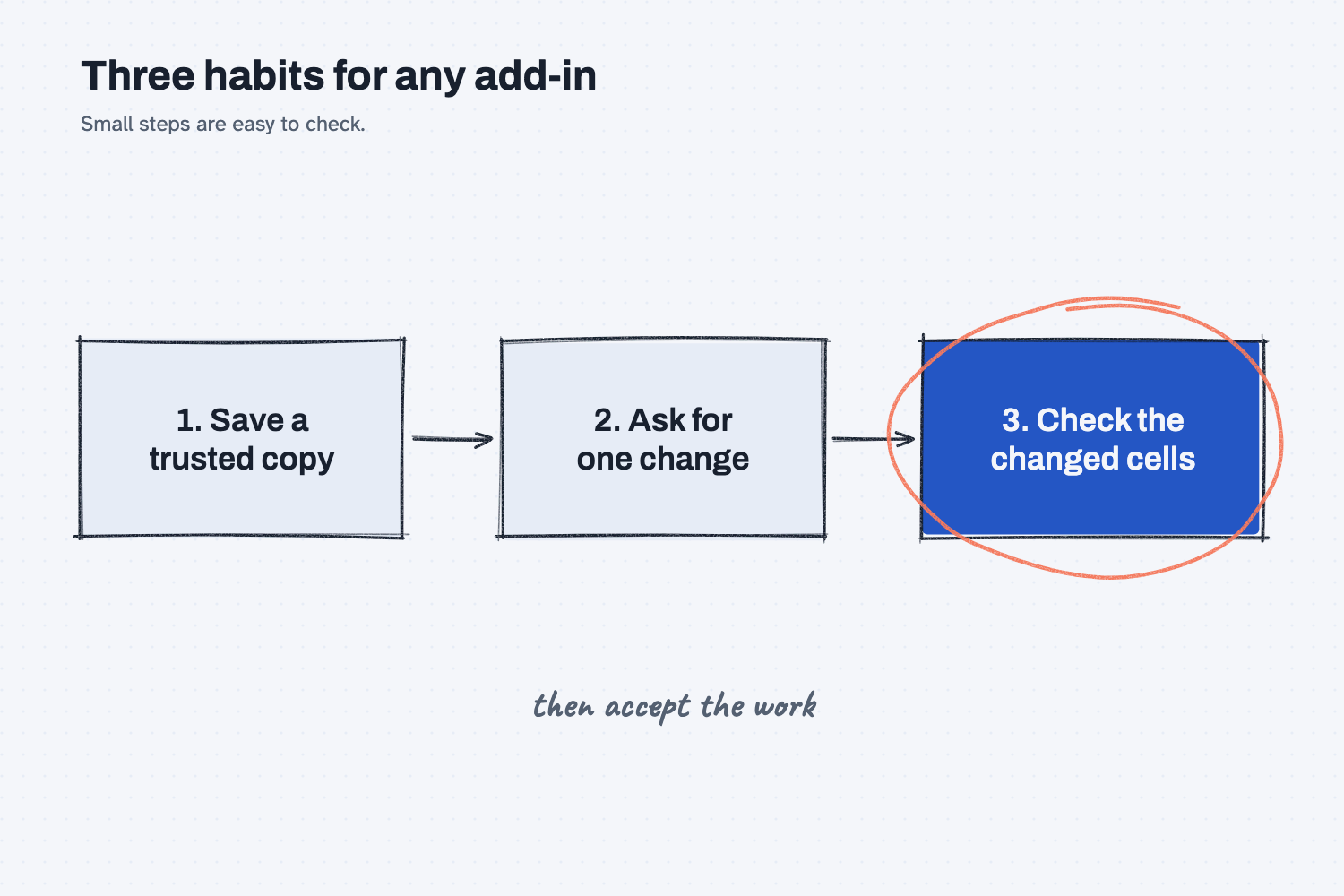
The habit that goes with an add-in fits in three steps. You keep a copy of the file before the AI touches it, you ask for one change at a time so there is little to review, and you look at exactly which cells changed before you accept the work. The third step is the one people skip, and it is where the add-in earns your trust or loses it. (The lesson on changing one thing at a time explains why small steps are easier to check.)
Where do people get it wrong?
Most mistakes come from treating the add-in like a chat, when it can reach the real file.
- Skipping the copy. If you let it edit your only version, undoing a bad change gets harder. Work on a copy for anything that matters.
- Trusting math without a check. An AI can place a formula well and still pick the wrong range. See can AI do math for why, and recompute one total by hand.
- Using outside files without care. A downloaded price list or a supplier's template can carry hidden instructions, so open it with extra caution.
- Starting with messy data. If the sheet has merged cells and mixed formats, the AI will guess, so tidy first. The lesson on cleaning data before AI shows how.
- Assuming IT's rules carry over. Ask whether your retention and audit settings apply to the add-in, because the help pages say some do not.
Try this in 2 minutes
This test asks AI to explain the add-in idea with the desk comparison and to give you three checks for a price sheet. You can use any chat tool.
- Open a new chat and paste this:
I buy parts for a small metal shop and I am not technical. In 4 plain sentences, explain what it means when an AI assistant works inside my open Excel price sheet (as an add-in) instead of in a separate chat window. Use the comparison of a helper sitting at my own desk versus a helper in another room who only gets copies I mail over. Then give me 3 short checks to do before I accept its changes to a price sheet.
- Read the four sentences and check that they say what the desk helper gains and what it risks.
- Copy the three checks onto a sticky note for the next time you use an add-in.
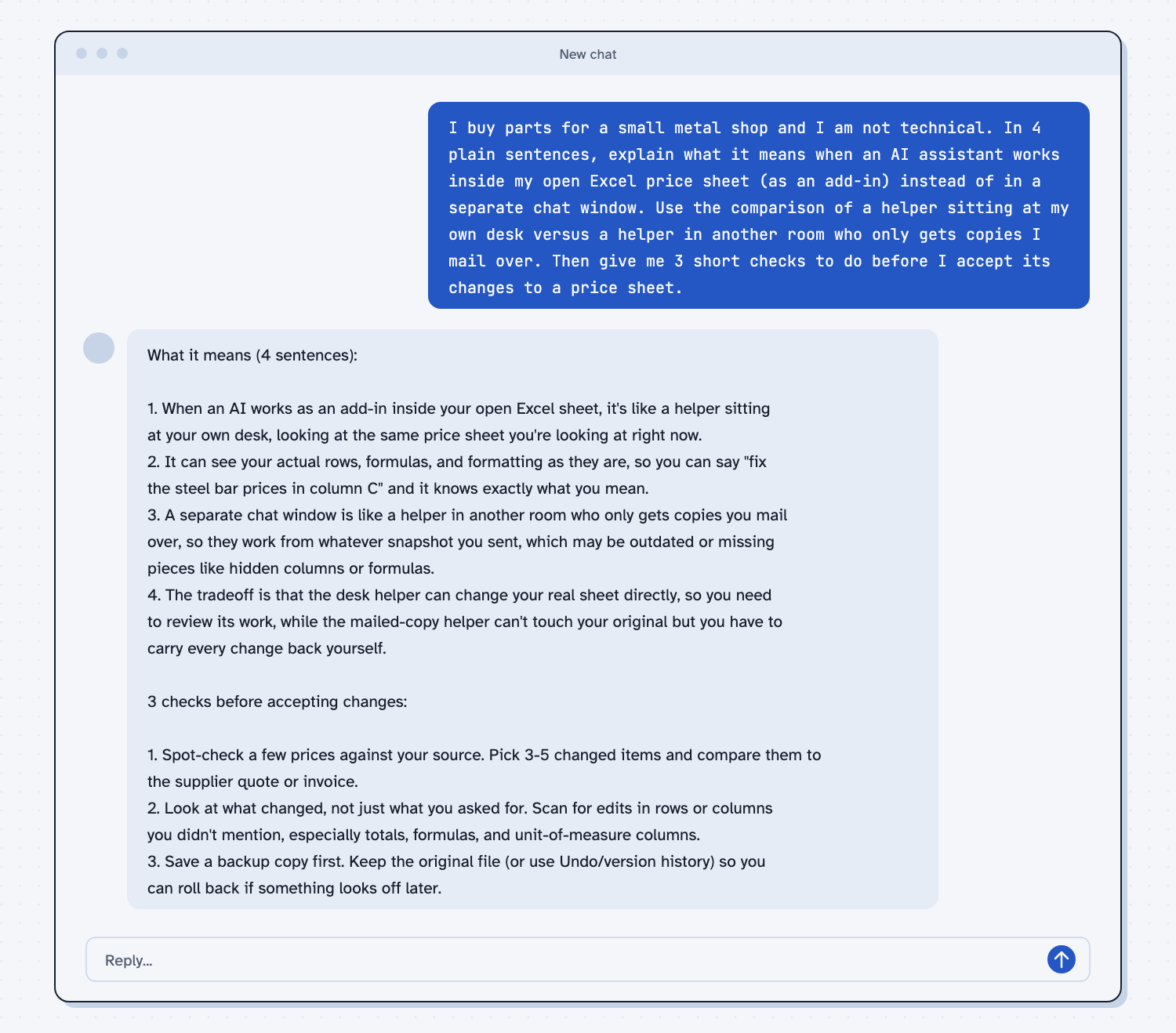
When I tried this, the reply put the tradeoff in one line: "the desk helper can change your real sheet directly, so you need to review its work, while the mailed-copy helper can't touch your original but you have to carry every change back yourself."
The three checks were to spot-check a few changed prices against your source, to "scan for edits in rows or columns you didn't mention, especially totals, formulas, and unit-of-measure columns," and to save a backup copy first. The second check is the one I would keep, because an AI that was asked to fix one column may also touch a neighbor.
Frequently asked questions
What is an add-in?
It is a small program that adds a feature to an app you already use. An AI add-in puts an assistant in a side panel inside Excel, Word, PowerPoint, or Google Docs, Sheets, and Slides, where it can read and change the open file.
Is it the same as using Claude in a chat window?
It uses the same kind of AI, but the work happens inside your file instead of on a copy you paste. That gives it more context and more reach, so the checks matter more.
Does the AI change my file without asking?
Many add-ins let you choose between approving each edit and accepting edits automatically, and the Google version asks before edits by default. Use the approve-each-edit setting until you trust the results, and check the setting in your own version.
Can I use it on customer data?
Ask IT first, since the help pages note that the add-ins do not inherit custom retention settings your company may have set. The safe use page lists the questions to ask.
Use it today
- Clean an ERP export in Excel with Claude: a task where you can practice checking what changed.
- Related idea: Clean your data before AI sees it.
- Related idea: What CSV, JSON, and YAML files are.
- Related idea: Use AI to build a tool.
From my training: this site teaches an add-in as a helper at your desk, so the first habit is always to check what the helper changed.