How AI Connects to Your Systems: Connectors Are a Visitor Badge
With Josh Schultz ·
Answer. This is how AI connects to your systems: through a connector, which is a link that lets an AI open something in another program, such as your email, your shared drive, or your ERP data, using your permission. Without one, the AI sees only what you paste into the chat. With one, it can look things up, and you decide how much it may see and change.
The picture
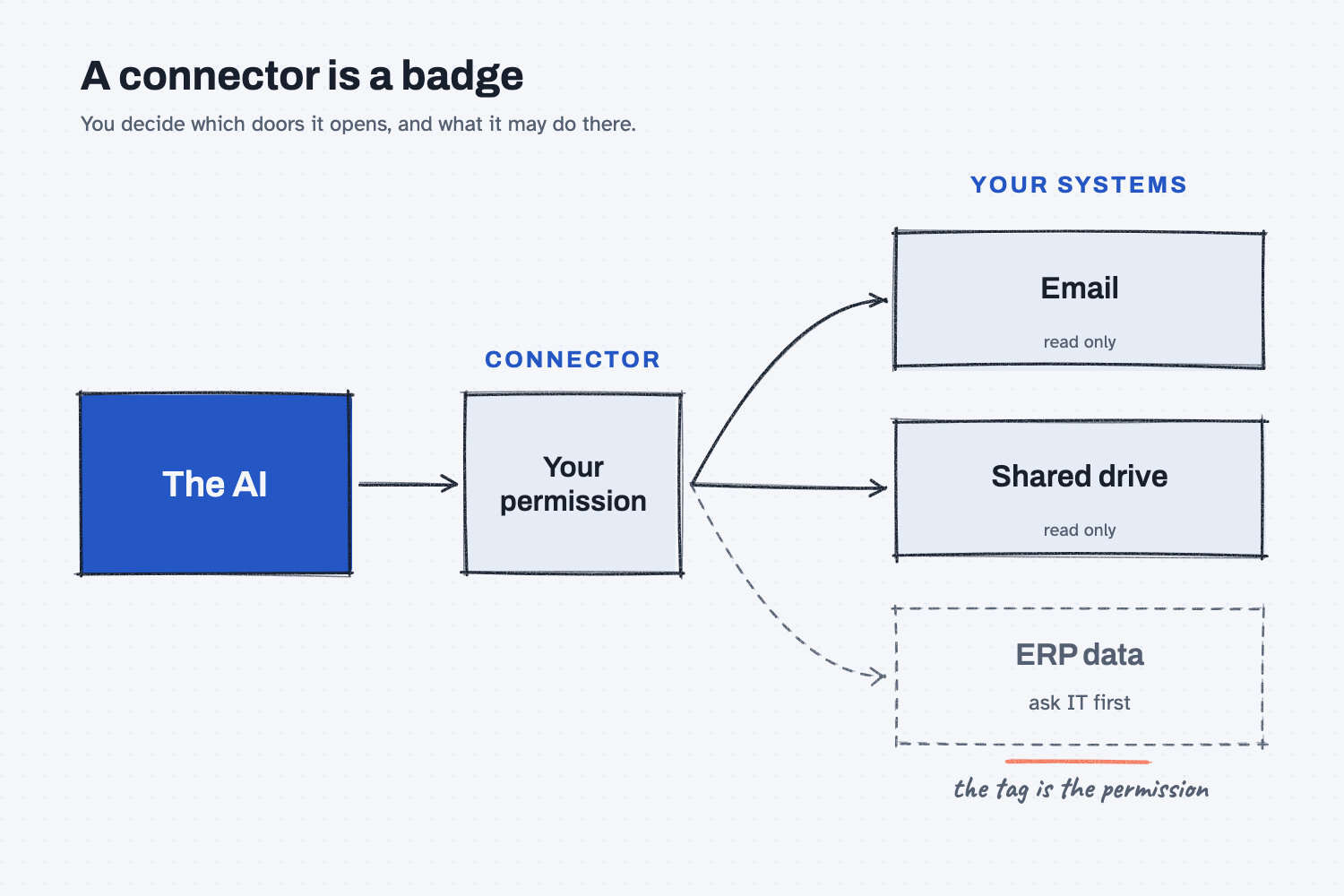
On the left is the AI, and in the middle is the connector, which works like a plug between the AI and your other programs. On the right are three places it might connect to, and each one has a tag that says what the AI is allowed to do there. Email and the shared drive are marked read only, which means the AI can look but not change anything. The ERP, which is the system that runs your orders and inventory, is drawn with a dashed line because it is the one you should ask IT about before connecting anything.
Think of it like this
Think about the visitor badge you wear when you tour another company's plant. The badge was issued by someone who works there, it opens only the doors that person chose, and it can be taken back at the end of the day. You can look at the floor, but you are not allowed to run the machines.
A connector is a badge that you issue to the AI. You sign in to your email or your drive and tell the tool it may open certain doors, and the AI can then go through them for you. It acts as you, so it can see what you could see, and it should never get a badge that opens more than the job needs.
Why does it matter at work?
A connector turns the AI from a helper that only reads what you paste into a helper that can go find things. That saves a lot of copying, but it also means a mistake can reach further than a single chat.
Here is an example. Kevin Thao buys steel at Mesquite Ridge Metal Works, and he keeps supplier quotes in one folder on the shared drive. Today he downloads each quote and drags it into a chat. If he connects the AI to that one folder with read-only access, he can say, "Find every quote for MR-3001 bar stock from the last six months and compare the prices," and the AI goes and finds them.
He does not connect it to the whole drive, because the HR and finance folders have nothing to do with quotes. He also does not let it edit or delete files, because the job is only to read them. If the AI misreads a quote, the worst thing that can happen is a wrong answer he can check, and nothing has been changed on the drive.
How does it work?
Three ideas explain most of what you need to know.
You sign in, and you pick what to allow. Real connectors use a sign-in screen made by the program you are connecting, such as your email or drive provider, so you never type a password into the chat. That screen usually lists what the AI will be allowed to do, and it is worth reading before you click Allow, because that list is the permission.
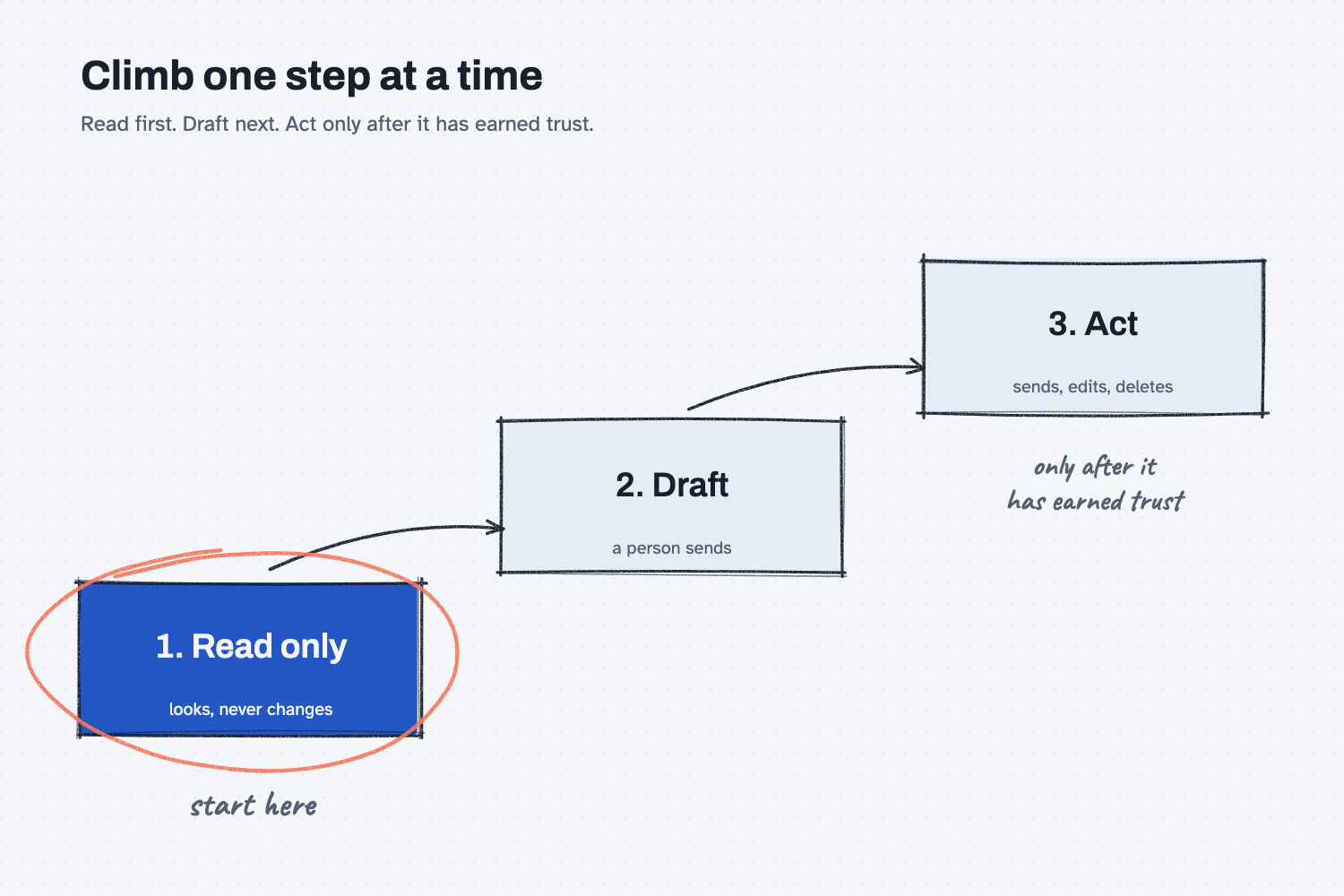
Permissions are a ladder, and you climb one step at a time. The first step is reading, which lets the AI see more of your information. The second is drafting, where it writes something but a person sends it. The third is acting, where it sends, edits, or deletes on its own. I explain the difference between reading keys and doing keys in AI tools and permissions, and the same idea applies here. Start at the bottom and move up only when the results have earned it.
You can take the badge back. Connections are listed in your tool's settings, and you can usually switch one off in a click. For company systems like your ERP, someone in IT usually controls what can connect, so ask them what is approved before you try (see human in the loop AI for how to keep a person in charge of the risky steps).
Where do people get it wrong?
Most mistakes come from saying yes to the first screen without reading it. These are the ones I would watch for.
- Connecting everything on day one. Each connection is another door, so start with one and see how it behaves.
- Giving more access than the job needs. If the task is finding quotes, the AI needs one folder and not the whole drive.
- Starting with the doing permissions. Sending and deleting cannot be undone, so begin with read-only and add the rest later, if ever.
- Forgetting what is connected. Look at your connections once a month and switch off the ones you no longer use.
Try this in 2 minutes
This test asks the AI what access it would want, so you can see how it reasons about permissions. Open a new chat in any tool and paste this:
I want to connect you to my email and my shared drive so you can find supplier quotes. What access should I give you first, and what should I hold back? Answer in plain words, under 100 words.
Then open your tool's settings and look for a list of connections or connectors. Check which ones are turned on, and switch off any you do not use.
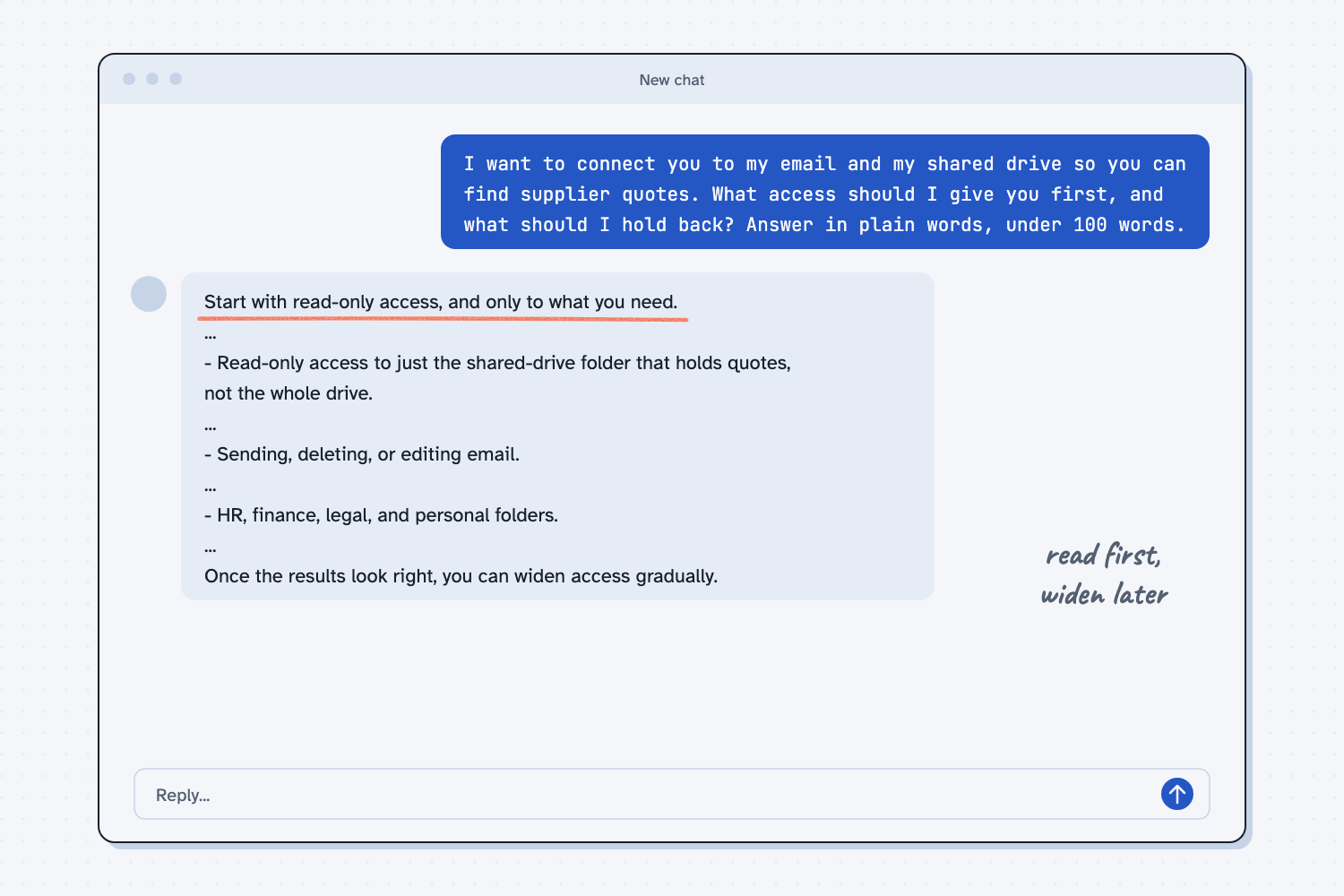
When I tried this, the reply started with the same rule I would give you: "Start with read-only access, and only to what you need." It suggested limiting the drive access too: "Read-only access to just the shared-drive folder that holds quotes, not the whole drive."
Then it listed what to keep back, including "Sending, deleting, or editing email" and "HR, finance, legal, and personal folders." It closed with the same slow approach: "Once the results look right, you can widen access gradually."
A chat without any connection is only describing good habits, so it does not prove how a real connector will behave. Your own settings page, and your company's rules, are what decide that.
Frequently asked questions
What is an AI connector?
A connector is a link that lets AI open something in another program, such as your email, calendar, or shared drive, using your permission. You set it up through a sign-in screen, and you can usually turn it off in your settings.
Is it safe to connect AI to my email?
It can be, if you start small. Give it read-only access first, keep sending in a person's hands, and follow your company's rules about which tools are approved.
Can AI connect to my ERP?
Sometimes, but that is a decision for your IT team and not something to try on your own. Ask what is approved, what the AI would be allowed to read, and whether it can change anything.
Should I give AI my password?
No. A real connector uses a sign-in screen from the program you are connecting, so a chat that asks you to type a password is a warning sign.
Use it today
- Email suppliers about what's missing from their quotes: the AI drafts the emails, and only you can press Send.
- Related ideas: AI tools and permissions and levels of AI automation.
From my training: every connection starts read-only, and we add more access only when a person signs off.