How to Schedule AI Tasks: Set It Once and Let It Run Every Week
With Josh Schultz ·
Answer. A scheduled task is an instruction you write once and save, so Claude runs it again on a timetable, such as every hour, every weekday, or every Monday morning, without you starting it. Each run leaves its result for you to read when you are ready. It turns a job you do by hand every week into a job that is already done when you sit down.
The picture
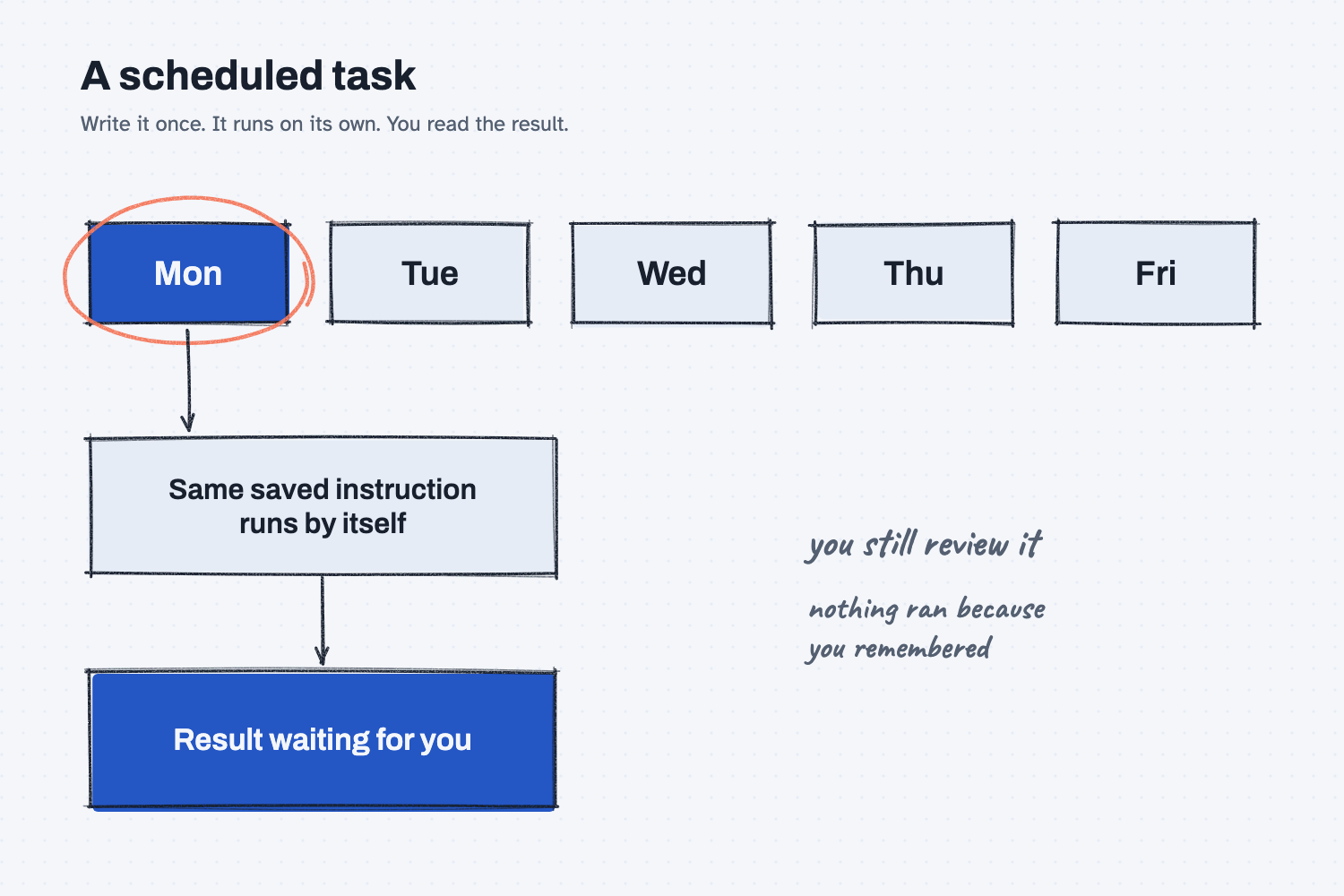
The row across the top is the week. The circled Monday is when the saved instruction runs on its own, using exactly the words you wrote once. Underneath it, the result waits in a box for you to read, and the note on the side says that reading it is still your job. Nothing in the picture runs because you remembered to start it.
Think of it like this
Think about the standing orders on a shop floor. The night crew does not wait for someone to hand them a new sheet each evening. There is a posted routine: at 5 p.m. shut down the presses, wipe down the stations, and write the count on the board. The routine runs every day, and the supervisor reads the board in the morning.
A scheduled task is a posted routine for an AI helper. You write the routine once, you say when it runs, and you read the board when you arrive. What makes a routine good is not the clock, it is the wording, because the helper will follow your written instruction every time with nobody there to ask what you meant.
Why does it matter at work?
It matters because many office jobs repeat on a schedule and are boring enough that they get skipped. The Monday report, the weekly look at late orders, and the morning check of a shared inbox are all examples. If the job depends on someone remembering, it gets missed in the busy weeks, which are the weeks it matters most.
Here is an example. Hector Lee, the planner at Mesquite Ridge Metal Works, used to open the purchase order list every Monday and look for orders past their due date. Now a saved instruction does that at 7 a.m. and writes a short summary. When he gets in, he reads the summary and calls the two suppliers that need a call.
The catch is that a task that runs on its own can also be wrong on its own. Anthropic's safety page advises starting scheduled tasks with low-risk work and reviewing the output after each run. A weekly summary that only reads a file is a good first task, and a weekly task that sends email to suppliers is not, at least not until a person approves each send. (See what triggers an AI agent for the idea of a start signal.)
How does it work?
There are four parts: the instruction, the timetable, the place it runs, and the review.
You write the instruction. The saved instruction has to stand on its own, because nobody is there to answer questions when it runs. A good one names the file, says what to produce, says what to do if the file is missing, and ends with a fixed line so you can tell the run worked. How to write that kind of precise ask is covered in how to write a good prompt.
You choose the timetable. Anthropic's help page for scheduled tasks lists hourly, daily, weekly, weekdays, or manual-only as choices. Times are read in your local time zone, and a run may not start at the exact minute, since the system can add a small delay. For anything that must happen at a precise moment, a start signal from another system is a better fit. That kind of signal is described in what a webhook is.
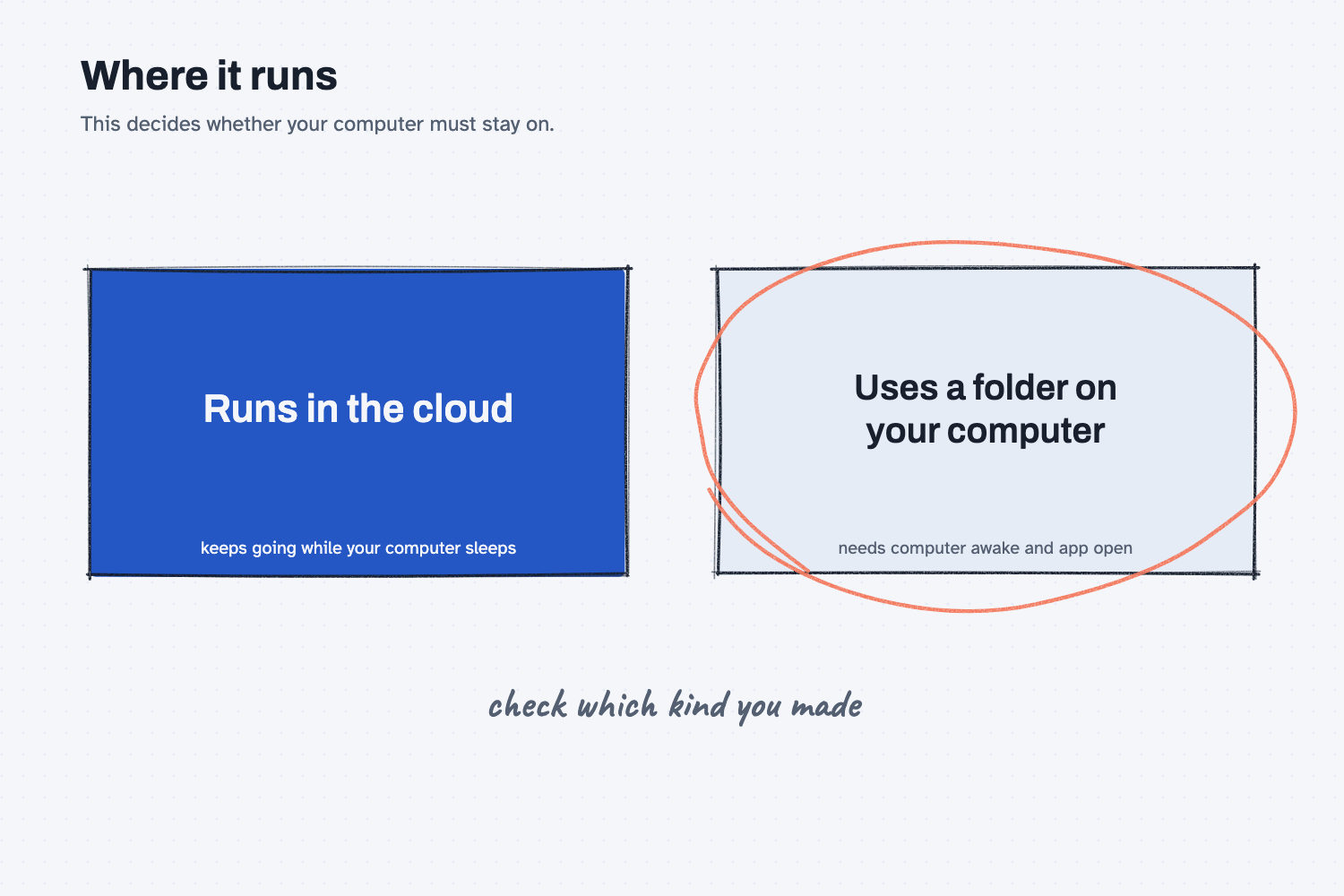
You pick where it runs. This is the part most people miss. According to Anthropic's help page, scheduled tasks in Cowork run remotely, so they run on schedule even when your computer is asleep or the app is closed. The exception is a task that works on a folder on your own computer. That one runs only while your computer is awake and the Claude desktop app is open. The Claude Code documentation draws the same line for its own tools. A repeating prompt inside a coding session fires only while that session is running, and its repeating jobs expire after seven days, while cloud tasks do not need your machine on. Which setup you have depends on your plan, so set up Claude first.
You review each run. Every run is its own session, and the help page says you can see upcoming and past runs under "Scheduled" in the sidebar. A run can also stall: if the task needs a tool that is set to always ask, the page says it may wait for your answer or finish without that tool. Keep a record of what ran and what it produced, as the AI audit trail explains.
Where a scheduled task sits on the scale from helper to autopilot is covered in levels of AI automation. A scheduled summary that you read is near the safe end, and a scheduled action that changes things is much further along.
Where do people get it wrong?
Most mistakes come from forgetting that nobody is watching the run. These are the ones to avoid.
- Starting with a risky task. Begin with a task that only reads and summarizes. Add actions later, with approval, once you trust the output.
- Writing a vague instruction. "Check the orders" leaves the AI to guess every Monday. Name the file, the columns, and the rule for late.
- Not planning for a missing file. If the file is not there, a good instruction says to stop and say so, not to use old data or make something up.
- Never reading the output. A task that runs quietly for months can fail quietly too. Open the result on the first few runs and then at a regular check.
- Assuming it runs when the computer is off. Check which kind of task you made.
Try this in 2 minutes
This test asks Claude to write the saved instruction for the Monday late-order check, including what to do if the file is missing. You can use any chat tool.
- Open a new chat and paste this:
Write the exact plain-English instruction I would save for a task that runs every Monday at 7 am without me: list open purchase orders that are past their due date and draft a short summary. Include what it should do if the file is missing, and one line it should always end with so I can tell the run worked. Under 120 words.
- Check that the instruction names the file, tells the AI to stop if it is missing, and ends with a fixed line.
- Ask yourself whether a successful run and a failed run end with the same line. If they do, change it.
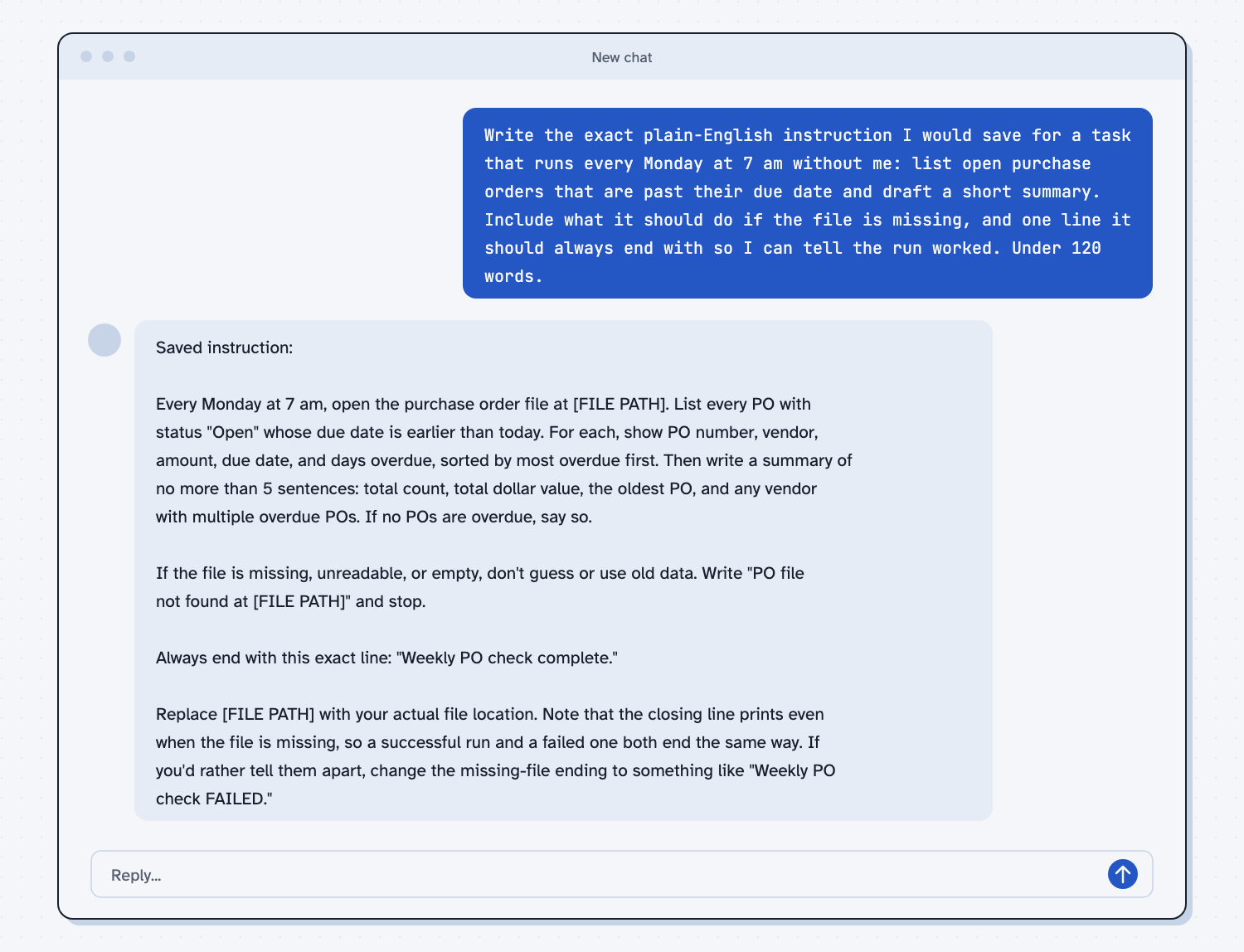
When I tried this, the instruction said "If the file is missing, unreadable, or empty, don't guess or use old data," and told the AI to write "PO file not found" and stop. It ended with the line "Weekly PO check complete."
The reply then caught a flaw in its own wording: "the closing line prints even when the file is missing, so a successful run and a failed one both end the same way." It suggested a different ending for the failure case, such as "Weekly PO check FAILED." That is exactly the kind of thing to check, because a saved task that cannot tell you it failed will look fine for weeks.
Frequently asked questions
Does a scheduled AI task run when my computer is off?
Usually yes for cloud tasks. Anthropic says Cowork scheduled tasks run remotely even when your computer is asleep. A task that uses a folder on your computer needs the computer awake and the app open.
How often can I schedule a task?
Anthropic's help page lists hourly, daily, weekly, and weekdays, plus manual runs. Other Claude tools have their own limits, so check the tool you use.
Is it safe to let AI run by itself?
It is safe when the task only reads and summarizes, and when you review each result. Keep anything that sends, deletes, or buys behind your approval.
How do I know the task actually worked?
End the instruction with a fixed line, have a different line for failure, and check the run list in the sidebar. Open the output on the first few runs.
Use it today
- Compare supplier quotes every time: a repeat job you can turn into a saved routine.
- Related idea: What triggers an AI agent.
- Related idea: What is a webhook.
- Related idea: The AI audit trail.
- Setup help: Set up Claude.
From my training: this site teaches you to automate a job you already do by hand and check, and to start with one that only reads.