What Is Plan Mode? Make the AI Show You the Plan First
With Josh Schultz ·
Answer. Plan mode is a setting that lets an AI helper read your files and propose what it would do, while blocking it from changing anything until you approve the plan. It works like a new hire who shows the supervisor a work plan before touching a machine. You read the plan first, and the work begins only after you say yes.
The picture
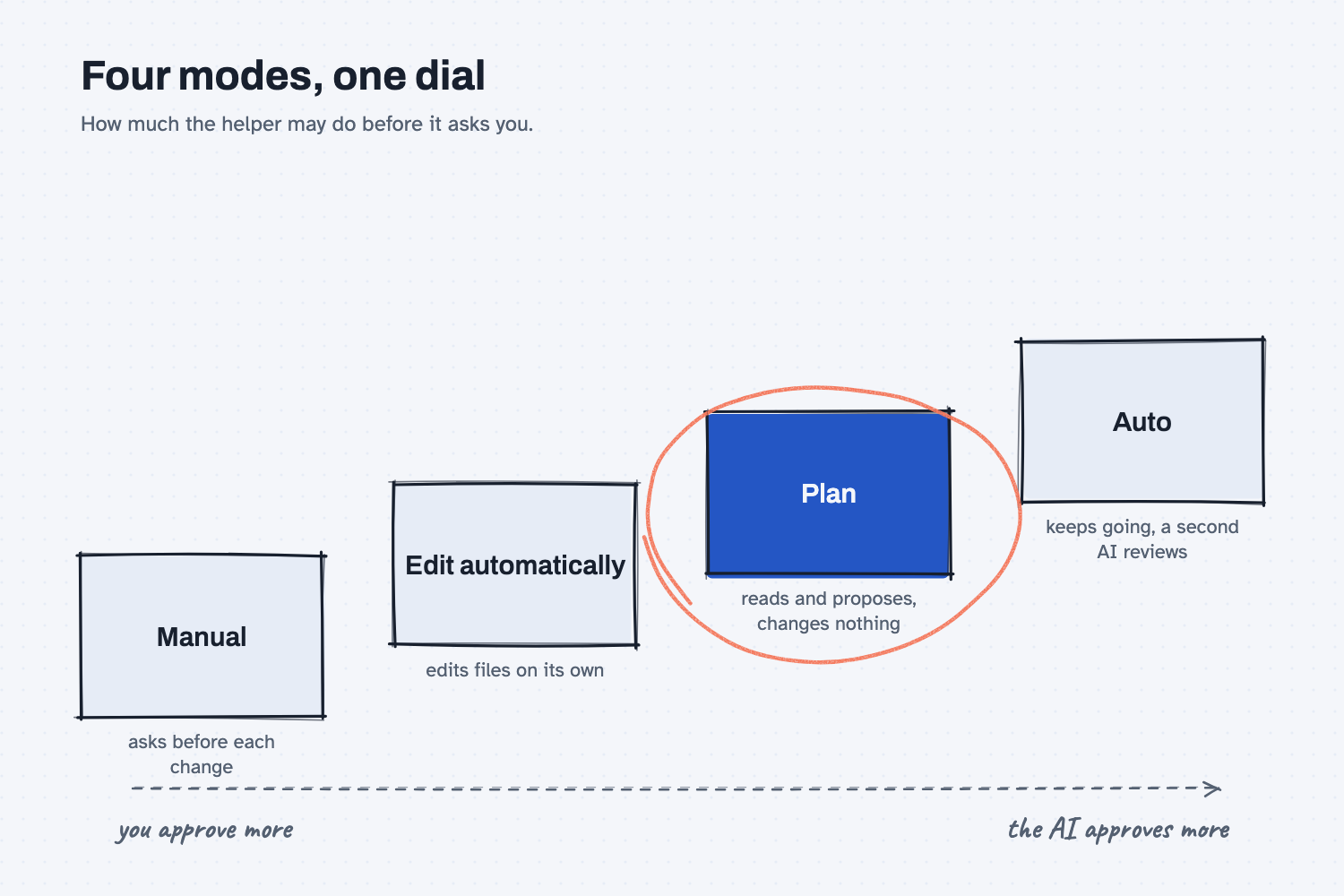
AI helpers that work on your files usually come with a few permission modes, which are settings for how much the helper may do before it asks you. In Manual, it asks before each change. In Edit automatically, it makes file edits on its own. In Auto, it keeps going while a second AI reviews each action. Plan sits apart from the others because the helper may only look and propose, so nothing in your files can change.
Think of it like this
When a new hire joins your shop, you do not hand them a job and walk away. You ask them to walk you through what they plan to do first, and you listen for the step that is wrong. A good supervisor catches it at the whiteboard, where a fix costs nothing, and not after the part is cut.
Plan mode puts the AI helper in that same seat. It studies the job, writes down the steps, and waits. You read the steps the way you would read a traveler on a work order, and you either approve it, ask for a change, or send it back.
Why does it matter at work?
The cheapest place to find a mistake is in the plan. By the time the work is done, you have to read the result, work out what changed, and undo whatever you do not want.
Here is how this looks at Mesquite Ridge Metal Works. Hector Lee, the planner, wants a helper to tidy the open orders export, merging duplicate rows and renaming a few columns. He turns on plan mode and asks. The helper reads the file and comes back with a short plan that includes "remove duplicate rows by PO number."
Hector stops on that line. Several of those rows are not duplicates. They are split shipments of the same PO, with different ship dates. If the helper had been allowed to simply start, he would have found out after the dates were gone. Because he read the plan, he replies, "keep rows that have different ship dates," and approves the corrected version.
This is the planning step from People plan, AI does the work made into a button. The plan is where your judgment goes, and plan mode makes sure you get to read it before the doing begins.
How does it work?
There are three parts: the modes, the plan itself, and what happens when you approve.
The modes. Anthropic's documentation lists them. In Manual, which the product also calls "default," everything except reading prompts for approval. In Edit automatically, file edits and simple file commands run without asking. In Auto, "everything" runs, "with background safety checks." In Plan, the helper reads and proposes. These are the same rungs as the ladder in Start with draft, earn trust, and they match the ideas in AI tools and permissions. Labels can change between versions, so look at the mode shown on screen before you start a big job. Recent versions of Claude Code start in Auto, which means you have to choose Plan on purpose.
The plan. The documentation says plan mode "tells Claude to research and propose changes without making them." In the terminal you press Shift and Tab to move between modes, or you type /plan before one request. The helper then reads files and explores, but its edits stay blocked.
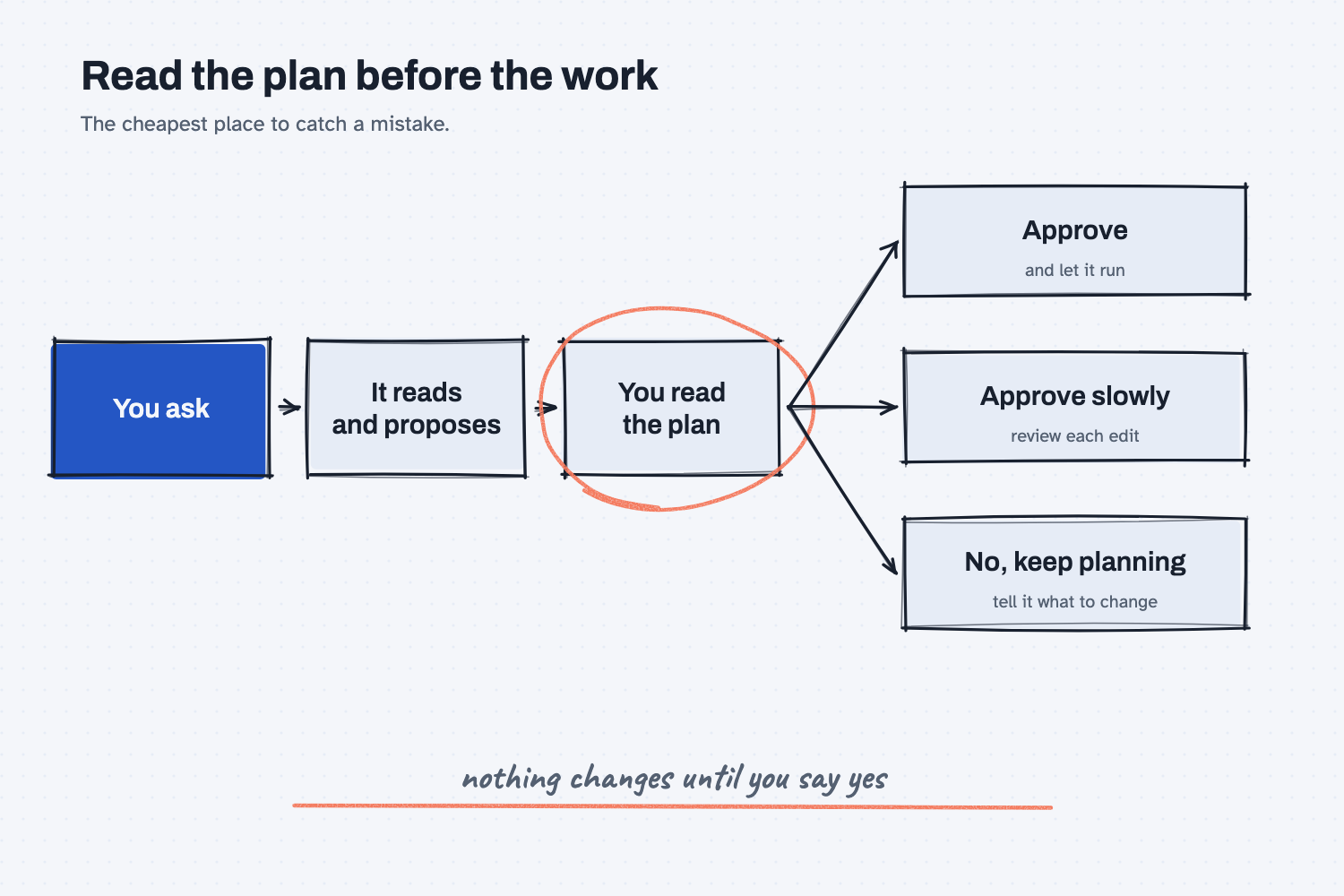
The approval. When the plan is ready, the helper asks how to proceed. You can approve and let it run, approve and review each edit one by one, or say no and tell it what to change. "No, keep planning" is the choice to use when Hector sees the duplicate rows line. Approving also ends plan mode, so the helper starts making changes, as the documentation puts it, in "the permission mode each approve option describes."
A word about Auto. In Auto mode, "a separate classifier model reviews actions before they run." That is a second AI acting as a reviewer, and Anthropic says plainly that "auto mode reduces permission prompts but does not guarantee safety." So Auto is a convenience. A rule that must never be broken belongs in a guard such as a hook, which runs every time.
Where do people get it wrong?
Most mistakes come from approving a plan too fast. These are the ones I see most.
- Skimming the plan. The plan is the one place where you can fix things for free, so read every line, especially the ones that say delete, remove, merge, or overwrite.
- Using plan mode for a tiny job. Renaming one file does not need a plan, and asking for one wastes your time.
- Not noticing which mode you are in. A helper that starts in Auto will not stop to show you a plan unless you switch.
- Approving a plan you do not understand. If a step is unclear, ask what it means before you say yes.
Try this in 2 minutes
This test asks AI to explain why it should show a plan first and what to look for when you read one. You can use any chat tool.
- Open a new chat and paste this:
I am not technical. An AI helper is about to reorganize my supplier price spreadsheet. In 5 plain sentences, explain why I should make it show me its plan first and change nothing until I approve, using the comparison of a new hire who shows a work plan to the supervisor before touching a machine. Then give 3 short things I should look for when I read the plan.
- Check that the reply gives three things to look for in a plan, such as what will change and what will be deleted.
- Pick a job you would give an AI helper this week, and write the first line you would check in its plan.
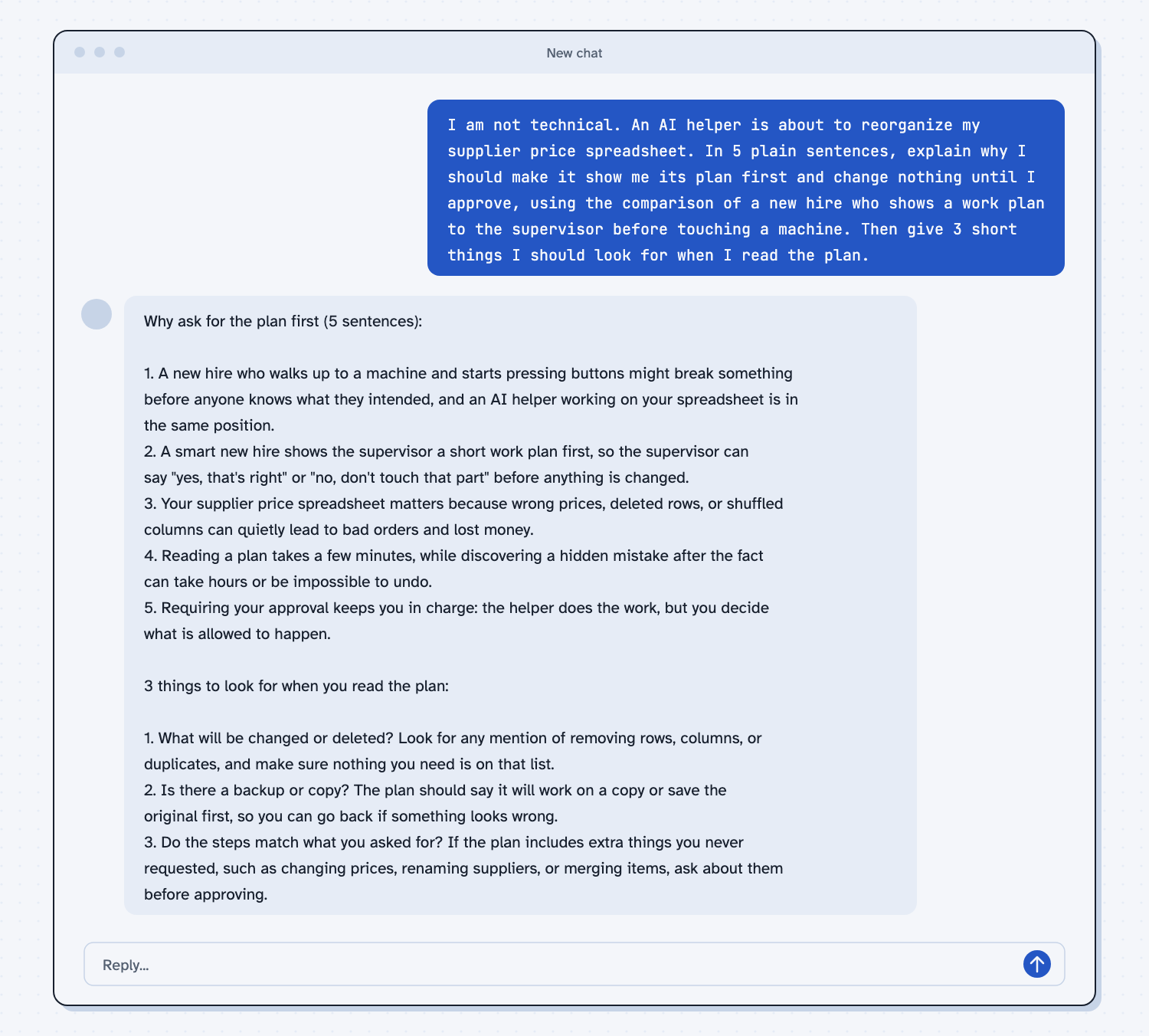
When I tried this, the reply said the new hire shows a short work plan "so the supervisor can say 'yes, that's right' or 'no, don't touch that part' before anything is changed." It added that "reading a plan takes a few minutes, while discovering a hidden mistake after the fact can take hours or be impossible to undo."
Its three checks were useful ones. It told me to look for "any mention of removing rows, columns, or duplicates," to see whether the plan says it will "work on a copy or save the original first," and to ask about "extra things you never requested, such as changing prices, renaming suppliers, or merging items." Those three checks work on any plan.
Frequently asked questions
What is plan mode in Claude Code?
It is a setting where the helper reads your files and proposes changes without making them. Nothing is edited until you read the plan and approve it.
What is the difference between plan mode and Auto mode?
In plan mode the helper only proposes, and you approve before anything changes. In Auto mode the helper keeps working, and a second AI reviews each action instead of you.
How do I turn plan mode on?
In the terminal, press Shift and Tab until the mode shown says Plan, or type /plan before one request. Menus and names can change, so check the mode shown on your screen. If you have not set it up yet, see how to install Claude Code.
Does plan mode work with human review at the end too?
Yes, and the two do different jobs. Plan mode lets you check the plan, and your read-over at the end checks the result. See human in the loop AI.
Use it today
- Clean up an ERP export in Excel with Claude: before you let a helper change your file, ask it for the plan and read it.
- Related idea: Start with draft, earn trust.
- Related idea: AI tools and permissions.
- Setup: Install Claude Code.
From my training: this site teaches that people own the plan, so plan mode is the button that puts the plan in front of you before the work starts.