Answer. To change your quote report, attach the script and your quote files to a new chat and describe the page you want to see, not the code. Ask for one change at a time, show a small example, and check each new page against your answer key before you save it as the next version.
Time and cost. About 20 minutes the first time, for two changes and their checks. $0 to practice with the sample files on the free Claude plan. Who this is for. Buyers and estimators who have a working report script and want it to show more, without learning to code.
This guide starts where Have Claude build your quote report ends, with a checked version 1 of the price history script and the page it makes. Here we change that page by saying what we want to see, and we check each change against the answer key before we keep it. When a bad file stops the script, or you want to keep every version safe and update your skill, the next guide, Fix your quote report and keep every version safe, picks up from here.
What will I learn besides changing a quote report?
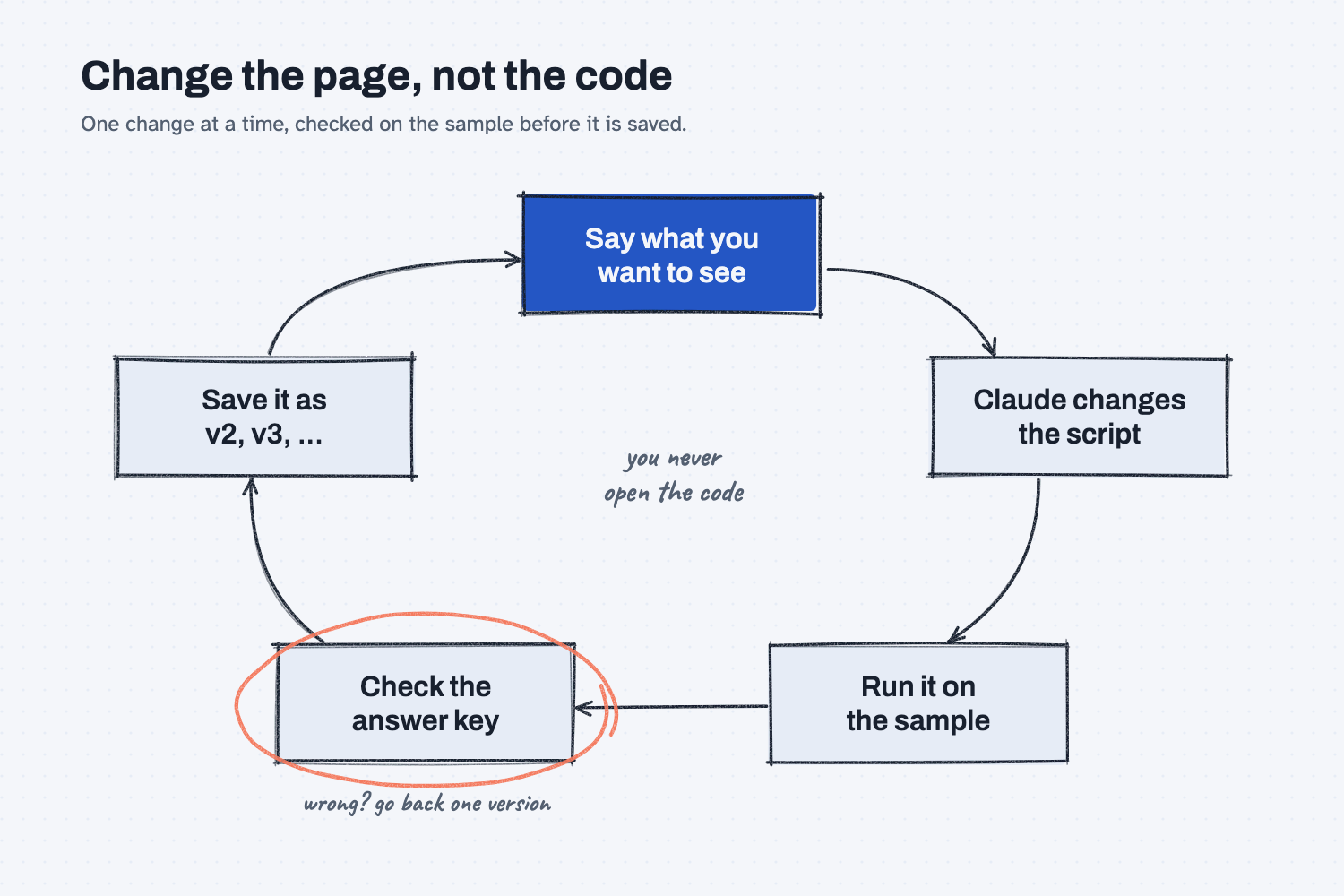
You will learn three habits that work for changing any report or tool that AI built for you. Each one has a short "why" later in this guide.
- Describe the output, not the code. You say what the page should show, and Claude works out the code.
- Show an example of what you want. A small typed table or a screenshot with a circle beats a long description.
- Make one change at a time and check it against an answer key. Then you always know which change broke something.
What do I need before I start?
You need the version 1 script and page from Guide 53, the sample files with their answer key, and Claude. There is nothing to install.
- Claude at claude.ai, with file creation on so it can run code. The free plan works for practice. If you have not set it up yet, follow Set up Claude first (about 10 minutes, once). To add files to a chat, see Attach files to a chat.
- Your
quote-reportfolder from Guide 53, withversions/quote_history_v1.py, thequote-historyfolder, and theanswer-key. If you skipped that guide, download the version 1 script and the sample quote files, and put the sample in aquote-reportfolder (see Download and unzip sample files if you need help with the zip).
Safe use. Practice every change on the sample files first, because the sample is where you know the right answer. Read the safe use notes.
How do I change my quote report?
Attach the script and the quote files, describe one change by the page you want, and check it against the answer key before you save it. There are three steps, and you repeat Steps 2 and 3 for each change.
Step 1. Attach the script and your quote files to a new chat
Open a new chat at claude.ai and attach the newest version you checked, which is quote_history_v1.py the first time, along with the five quotes-MRMW-RFQ-*.json files from quote-history. Claude needs both, because it changes the script and then runs it on the files to show you the new page. Leave the broken and answer-key folders out for now.
Step 2. Describe one change by the page you want to see
Say the change the way you would say it to a coworker, and show a small example: a typed mini table, or a screenshot with a circle on it. (Why you describe the output, and why an example helps.) Ask for one change at a time, so if something goes wrong you know which change did it. (One change at a time.)
Use the change prompt below. Fill in what you want to see, the example, and the next version number. Rule 5 asks Claude to say which numbers on the page moved, which is how you catch a change that touched more than you asked for.
I attached quote_history.py and my quote files. Change the page it makes, one change only:

[WHAT YOU WANT TO SEE, in plain words]

Here is an example of what I mean:
[A SMALL TYPED TABLE, OR A SCREENSHOT WITH A CIRCLE ON IT]

Rules:
1. Change only what I asked for. Keep every other number, column, and the layout the same.
2. Do not change how the prices or the changes are worked out unless I asked.
3. Save the new script as quote_history_v[N].py and keep the old one as it is.
4. Run it on the attached files and give me the new page.
5. Then tell me in plain words, with no code: what you changed, and which numbers on the page moved, if any.
Here are two real changes, the second starting from the version the first one made. After each one, check it in Step 3 before you ask for the next.
Change 1: "Add two columns to every table, after Unit price: the lead time in days and the freight cost from that quote." The example was one typed row: | MRMW-RFQ-1142 | ... | 98.50 | 14 | 285.00 |. Claude added both columns and replied, "None moved. I ran the old and new scripts on the same files." It also noted that Red Creek's freight is an estimate and Panhandle's is "around $300", so the page shows those as plain numbers.
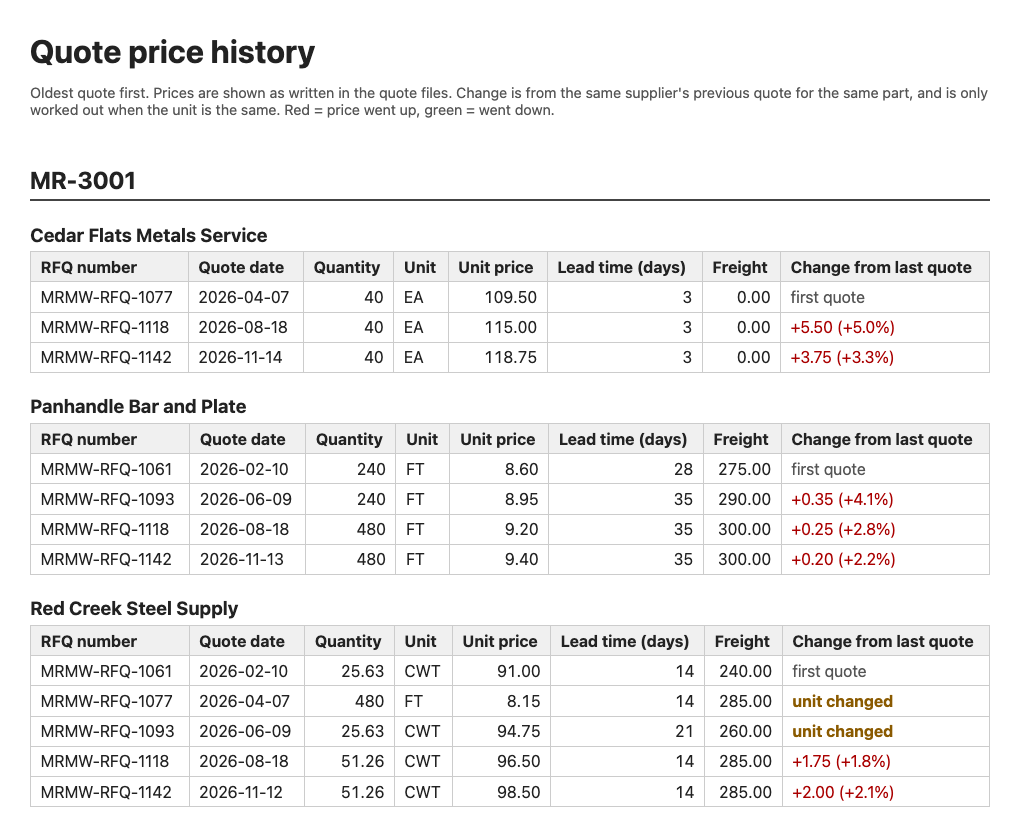
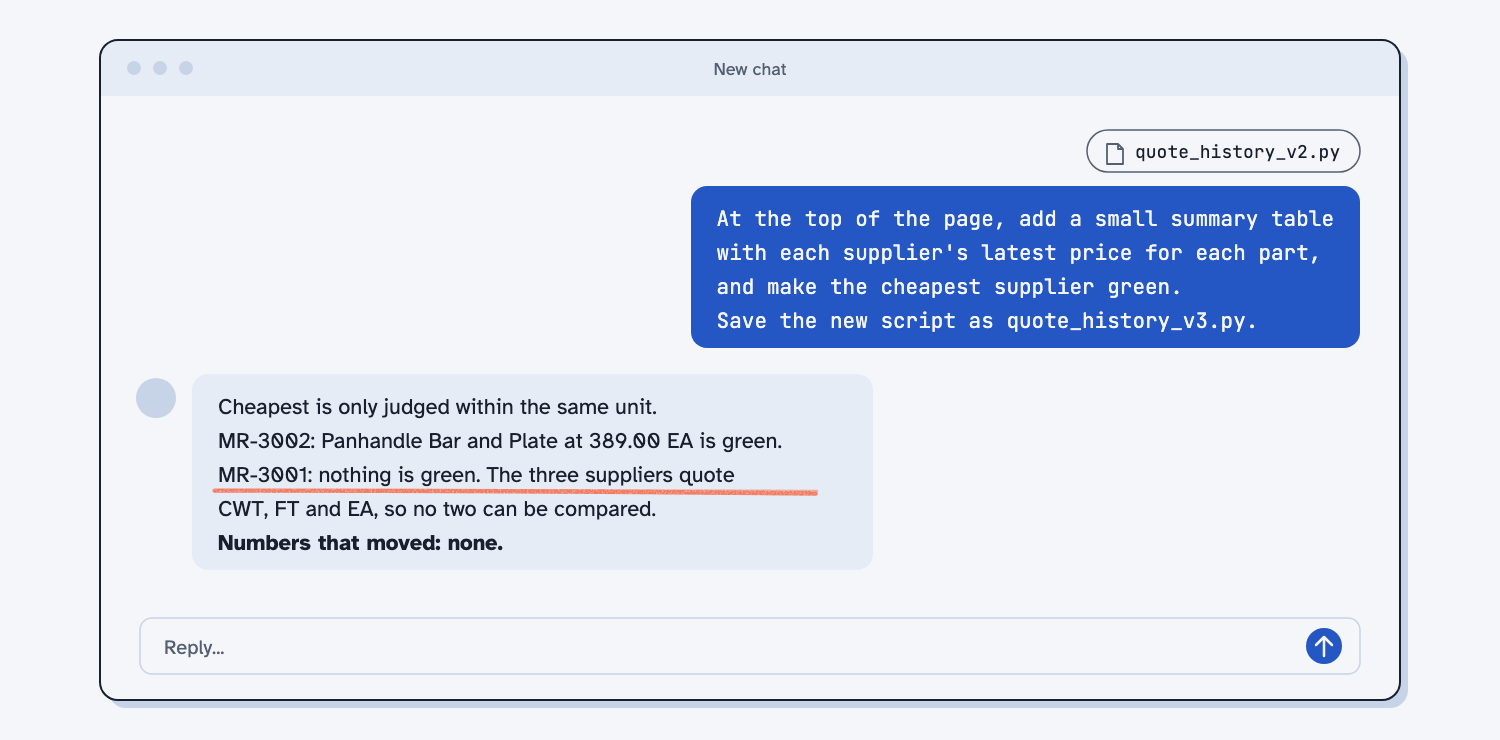
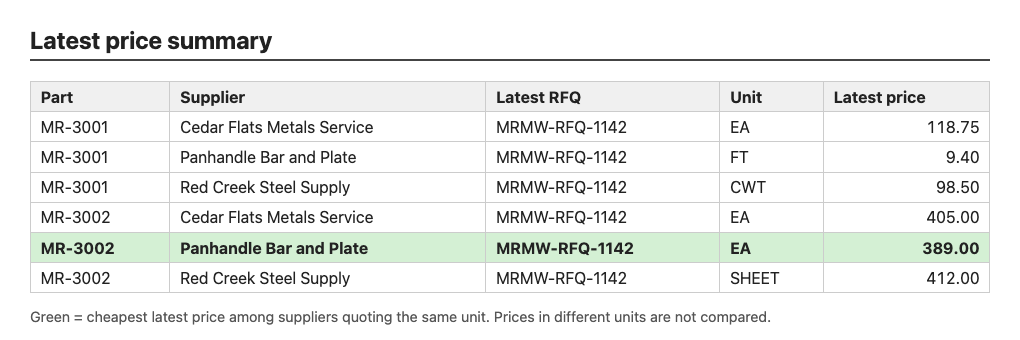
Change 2: "At the top of the page, add a small summary table with each supplier's latest price for each part, and make the cheapest supplier green." This one taught me something. Claude made MR-3002 green for Panhandle at 389.00 EA, but it made nothing green for MR-3001, because the three suppliers quote that bar in three different units (CWT, FT, and EA). Rule 5 of the build prompt in Guide 53 says not to round, convert, or fix any number, so it told me instead of converting units on its own. That is the right call, and if you want bar prices compared, tell Claude how your units relate, for example "one bar is 12 ft and about 128 lb."
Step 3. Check each change against the answer key
After every change, attach the new page and answer-key/price-history.md and send the check prompt, because a change to the layout can still move a number by accident. (How to test an AI tool against answers you know.)
I attached the page my script made from the sample quote files, and the answer key for those same files (price-history.md).
Check the page against the answer key, row by row: part, supplier, RFQ number, unit, unit price, and the change from the last quote.
Use the answer key as the truth. Do not fix anything and do not change the script.
Reply with a short table of every row that does not match, with what the page says and what the answer key says. If every row matches, say "All rows match" and how many rows you checked.
Both versions still matched the answer key on all 24 rows. Then look at the new parts of the page yourself, such as the new columns and the green row, because asking AI to check its own work only covers what it can see. If every row matches, save the new script in your versions folder as quote_history_v2.py, then v3, before you ask for the next change. If a row does not match, do not save that version, and use the fix steps in Guide 55.
More changes to try
Once the first two changes feel easy, here are two more I made the same way, each starting from the version before it. Each one still matched the answer key on all 24 rows.
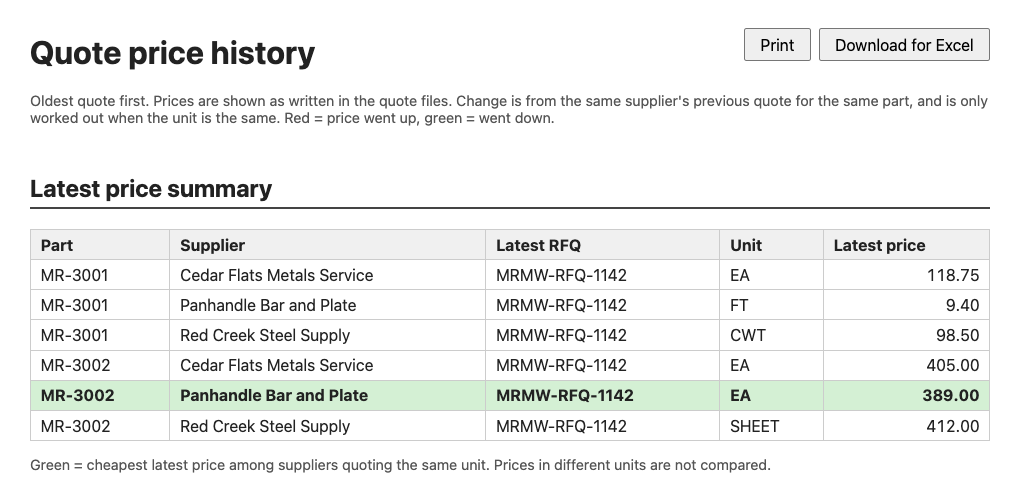
Change 3: "Add two buttons at the top right of the page: Print and Download for Excel." The example listed the columns I wanted in the Excel file. Claude added both buttons and said, "I haven't clicked the buttons in a browser, so the button behavior itself is untested." So I clicked them. Download for Excel saved a CSV file, which is a plain spreadsheet file Excel opens, with all 24 rows. The change column comes into Excel as text, though, so you cannot sort by it unless you ask for the change as its own number column.
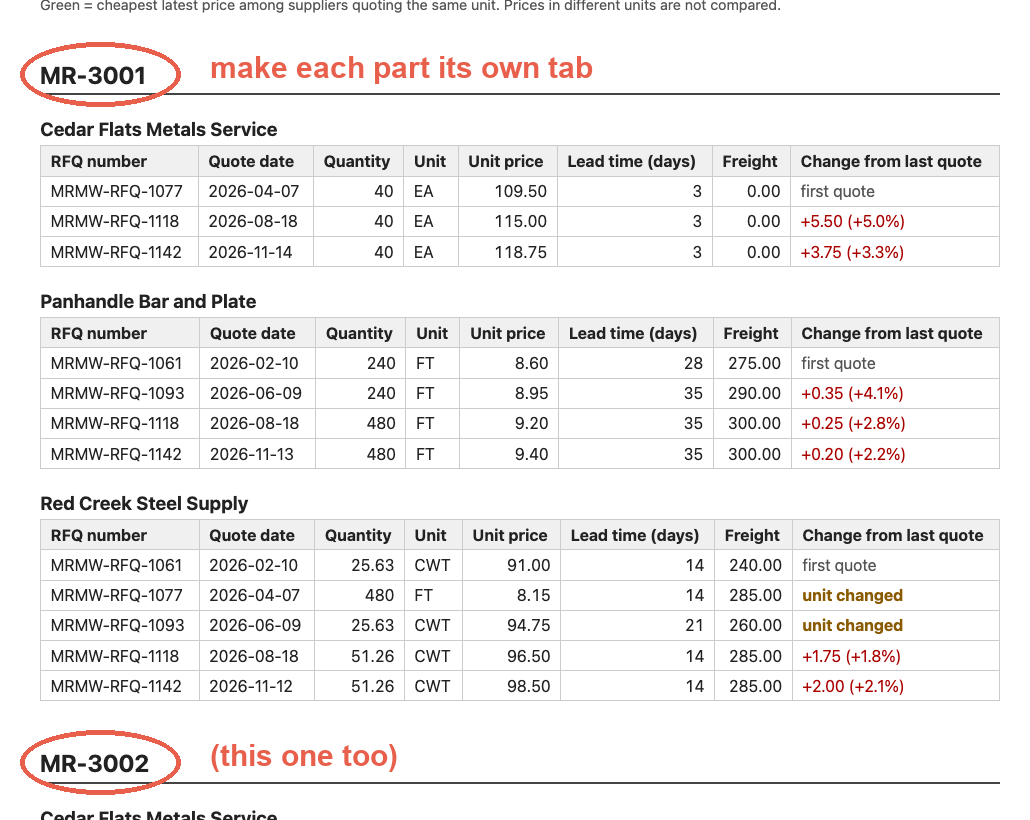
Change 4: "Put each part on its own tab, so I click MR-3001 or MR-3002 at the top and only see that part." For this one I attached a screenshot of the page with the two part headings circled and the words "make each part its own tab" written next to them, because a picture is the fastest way to point at something on a page.
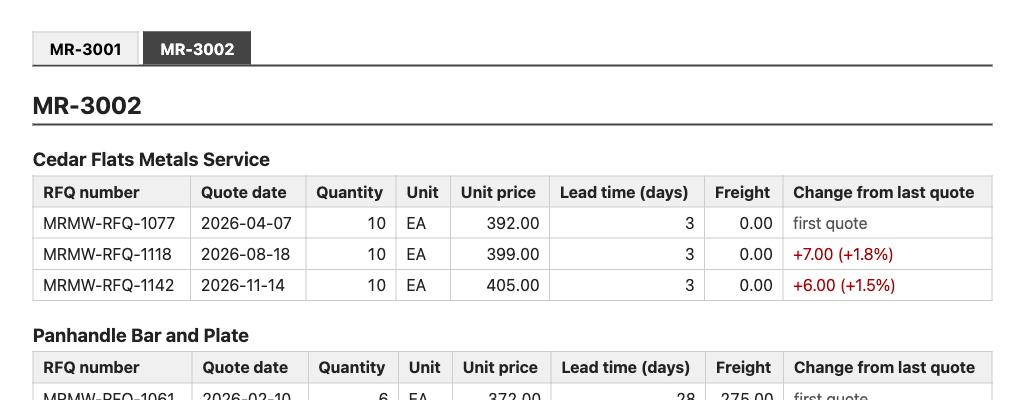
Claude added the tabs, kept Print printing every part, and said it compared all 222 table cells against the version before and none moved. Clicking the MR-3002 tab shows only the plate history. Click every new button and tab yourself before you save the version, because Claude cannot click them for you.
You can open the finished version 5 page to see all four changes together.
What does good look like?
After the two changes, the page has lead time and freight on every row and a latest price summary at the top with the cheapest supplier green, and the prices have not moved. Answer key, sample data. The numbers come from answer-key/price-history.md.
| Part | Supplier | Latest unit price | Unit | Green on the page? |
|---|---|---|---|---|
| MR-3001 bar | Red Creek Steel Supply | 98.50 | CWT | No, units differ |
| MR-3001 bar | Panhandle Bar and Plate | 9.40 | FT | No, units differ |
| MR-3001 bar | Cedar Flats Metals Service | 118.75 | EA | No, units differ |
| MR-3002 plate | Red Creek Steel Supply | 412.00 | SHEET | No, SHEET is not EA |
| MR-3002 plate | Panhandle Bar and Plate | 389.00 | EA | Yes, cheapest |
| MR-3002 plate | Cedar Flats Metals Service | 405.00 | EA | No |
What can go wrong?
These all came up while changing this report. None of them is a reason to stop, but each one is a reason to check.
- "Cheapest" across different units. Claude would not pick a cheapest bar supplier, because the prices are per CWT, per foot, and per bar, so tell it how your units relate if you want them compared.
- Two words for one unit. Red Creek says SHEET and the others say EA for the same plate, so say "treat SHEET and EA as the same" if they are the same to you.
- Untested buttons. Claude said plainly that it had not clicked the new buttons or tabs, so click everything yourself before you save the version.
- The Excel file sorts badly. The change column came in as text, so ask for a separate number column if you sort by it.
- Starting from an old version. Each change builds on the one before, so attach the newest version that passed, or you quietly lose your later changes.
- Claude changes more than you asked. It did not happen in these changes, but it can, which is why rule 1 says "change only what I asked for" and rule 5 asks which numbers moved.
How do I check the answer?
Check every new version on the sample before you run it on real quotes, and check the page, not Claude's description of it.
- Send the check prompt, which should say all 24 rows match.
- Compare one changed spot by hand, such as the green row or a new column, with the answer key or the quote file.
- Click every new button and tab yourself.
- Read Claude's answer to rule 5, which should say no numbers moved unless you asked for that.
Why does this way work?
It works because each change is small, you can see it, and you check it against numbers you already know before you keep it. Here is the short "why" behind each habit.
Describe the output, not the code. (Describe the output, not the code.) You know what a good report looks like, and Claude knows how to write the code, so when you describe the page, each of you does the part you are good at and you can judge the result by looking at it.
Show an example of what you want. (Show AI an example.) "Make it look better" can mean anything, but a typed row or a circled screenshot means one thing, so you get what you meant on the first try more often.
Make one change at a time and check it against an answer key. (One change at a time.) If you ask for four changes at once and a number moves, you cannot tell which change moved it. With one change and one check, the answer key tells you right away.
Frequently asked questions
Do I need to do Guide 53 first?
It helps, because that guide builds and checks the version 1 script this one changes. If you skipped it, download the version 1 script and the sample files from Guide 53 and start at Step 1 here.
Why not ask for all four changes in one message?
Because when a number moves, you would not know which change moved it. One change, one check, and one saved version means every version you keep is one you understand.
What if Claude's change breaks the page?
Go back to the last version that passed the check and ask again, with a clearer example. If the script stops with a message, Guide 55 shows how to fix it with the exact message pasted in.
Can I use ChatGPT or Copilot instead?
Yes, if the tool can run code and give you files back. The prompts are plain text, and the script is plain Python, so it runs the same no matter which AI changed it.
Take this with you
Two prompts that let you change any report Claude built for you and keep only versions you checked.
1. Change it, one thing at a time.
I attached quote_history.py and my quote files. Change the page it makes, one change only:

[WHAT YOU WANT TO SEE, in plain words]

Here is an example of what I mean:
[A SMALL TYPED TABLE, OR A SCREENSHOT WITH A CIRCLE ON IT]

Rules:
1. Change only what I asked for. Keep every other number, column, and the layout the same.
2. Do not change how the prices or the changes are worked out unless I asked.
3. Save the new script as quote_history_v[N].py and keep the old one as it is.
4. Run it on the attached files and give me the new page.
5. Then tell me in plain words, with no code: what you changed, and which numbers on the page moved, if any.
2. Check it against your answer key after every change.
I attached the page my script made from the sample quote files, and the answer key for those same files (price-history.md).
Check the page against the answer key, row by row: part, supplier, RFQ number, unit, unit price, and the change from the last quote.
Use the answer key as the truth. Do not fix anything and do not change the script.
Reply with a short table of every row that does not match, with what the page says and what the answer key says. If every row matches, say "All rows match" and how many rows you checked.
Or download the finished version 5 script, quote_history.py, which has all four changes. Next time you want the page to show something new, attach the newest version, say what you want to see, and check it before you save it.
What's next?
- Fix your quote report and keep every version safe, the next guide: fix it when a bad file stops it, save every version with a note, and update your skill.
- Have Claude build your quote report, the guide before this one, if you have not built version 1 yet.
- Compare supplier quotes the same way every time, which makes the quote files this report reads.
- Turn a messy ERP export into a clean report, the same idea for ERP data.
- Change one thing, then check it, the idea behind this whole guide.