Answer. To fix your quote report when it stops or looks wrong, paste the exact message or a circled screenshot into a new chat with the script and your quote files, and say what you expected to see. Claude finds whether the data or the script is wrong and fixes only that. Then save each working version with a one-line note, and update your skill to run the newest one.
Time and cost. About 20 minutes the first time, for one fix, the saved versions, and the skill update. $0 to practice with the sample files on the free Claude plan. Who this is for. Buyers and estimators who have a working report script and want to fix it themselves when a new file breaks it, without learning to code and without losing the version that works.
This is the third guide in the quote report series. In Have Claude build your quote report you built and checked version 1, and in Change your quote report by saying what you want you changed the page one step at a time. Here we fix the report when a bad quote file stops it, keep every version that passed its check, and point the skill at the newest one, so the report you run each month is always one you checked.
What will I learn besides fixing a quote report?
You will learn four habits that work for any report or tool that AI built for you. Each one has a short "why" later in this guide.
- Paste the exact message. Claude can only fix what it can see, so the exact words of the stop message matter more than your summary of them.
- Fix the cause, not the page. When the script stops on bad data, you fix the file or the script once, so every later page comes out right.
- Save every working version with a note. If a change goes wrong, you go back one version instead of starting over.
- Keep the skill on the newest checked version. The skill runs the script you checked, not a new one Claude writes each time.
What do I need before I start?
You need the newest checked script from the guides before this one, the sample files with their answer key, and Claude. There is nothing to install.
- Claude at claude.ai, with file creation on so it can run code. The free plan works for practice. If you have not set it up yet, follow Set up Claude first (about 10 minutes, once). To add files to a chat, see Attach files to a chat, and to add a skill, see Upload a Claude skill.
- Your
quote-reportfolder, with thequote-historyfolder, theanswer-key, and aversionsfolder holding the newest version you checked. That isquote_history_v3.pyif you made the two changes in Guide 54, orquote_history_v5.pyif you made all four. If you have not built one yet, start with Guide 53, or download my version 5 script and the sample quote files. - The
brokenfolder from the same sample zip, which holds the bad file you will fix in Step 1.
Safe use. Practice the fix on the sample files first, because the sample is where you know the right answer. Read the safe use notes.
How do I fix my quote report and keep every version safe?
Run the script on a new file, paste the stop message into the fix prompt, check the fixed page, save the version with a note, and update the skill. There are five steps.
Step 1. Run the script on the new quote file
Copy quotes-MRMW-RFQ-1150.json from the broken folder into quote-history, which is how a new quote arrives in real life. Then open a new chat at claude.ai, attach your newest checked script and all six quote files, and ask Claude to run the script and give you the page.
The script stops with this message, because the build prompt in Guide 53 told it to stop on bad data instead of making a page with a wrong number on it:
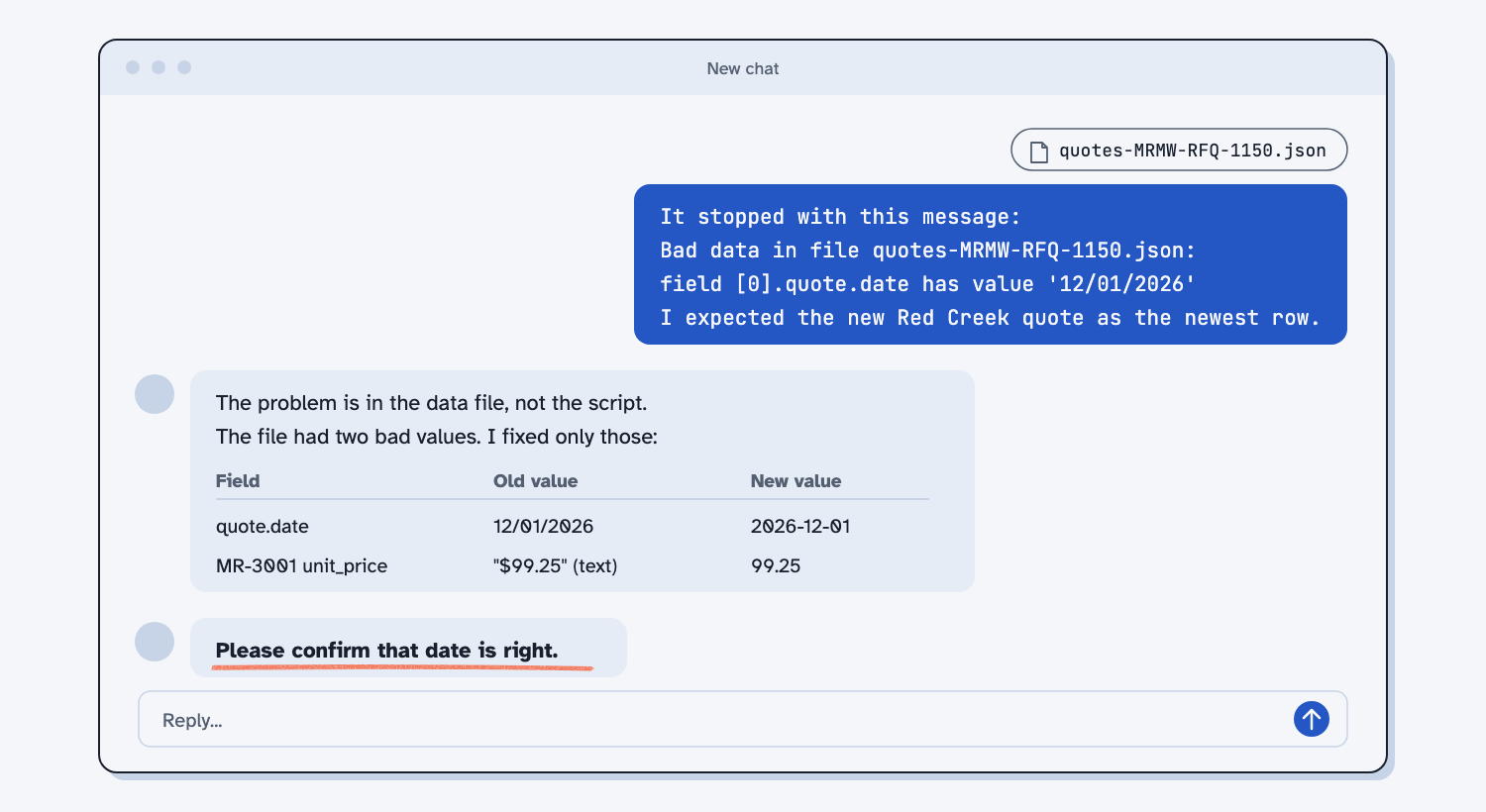
Bad data in file quotes-MRMW-RFQ-1150.json: field [0].quote.date has value '12/01/2026' (must be a real date written YYYY-MM-DD). Nothing was written.
That is the script doing its job, because it found a date written the wrong way and refused to make a page with it. The message names the file, the field, and the value, which is everything Claude needs to find the problem.
Step 2. Paste the exact message into the fix prompt
Copy the whole stop message, paste it into the fix prompt below, and say what you expected to see. Send it in the same chat, so Claude still has the script and the files. (Why you fix the cause instead of the page.)
I ran quote_history.py on my quote files and it did not do what I expected. I attached the script and the files.

What I saw (the exact message, or a screenshot):
[PASTE THE MESSAGE OR ATTACH THE SCREENSHOT]

What I expected:
[ONE OR TWO PLAIN SENTENCES]

First, tell me in plain words what went wrong and whether the problem is in a data file or in the script.
If it is a data file: fix only the bad value or values in that file, tell me each old value and new value, and do not change the script to accept bad data.
If it is the script: fix only that problem, save it as a new version, and keep the old one.
Then run it again on all the files and give me the page. Tell me which numbers on the page moved, if any.
Claude said the problem was in the data file, not the script, and it found a second bad value the first message did not mention: the MR-3001 price was typed as "$99.25", which is text, not a number. It fixed only those two values, showed the old and new value for each, and left the script alone. It also told me it had guessed that 12/01/2026 means December 1, not January 12, gave its reasons, and asked me to confirm. Always check a guess like that against the quote itself before you say yes, because AI fills gaps instead of leaving them.
If the page looks wrong instead of stopping, take a screenshot, circle the wrong part, and write what you expected next to it, for example "this should be 412.00, not 41.20." The same prompt works. When the fix is in the script rather than the data, Claude saves it as a new version, so you fix the instructions once instead of the answer every time.
Step 3. Check the fixed page
Once Claude has fixed the file, it runs the script again and hands you the page. Look for the new quote, and compare its row with the quote file by hand, because the answer key was made before this quote arrived. On the sample, the page showed RFQ 1150 as the newest Red Creek row.
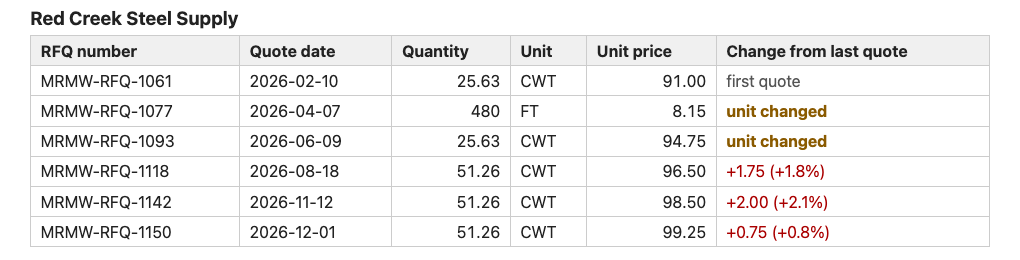
Every older row should still match the answer key. When you are done practicing, move the 1150 file back to broken, so the next time you check against the answer key, the two match again. (How to test an AI tool against answers you know.)
Step 4. Save each working version with a note
Every time a version passes its check, save the script with its version number in your versions folder and add one line to what-changed.txt that says what changed. (Save every working version, and keep a short record of what changed.)
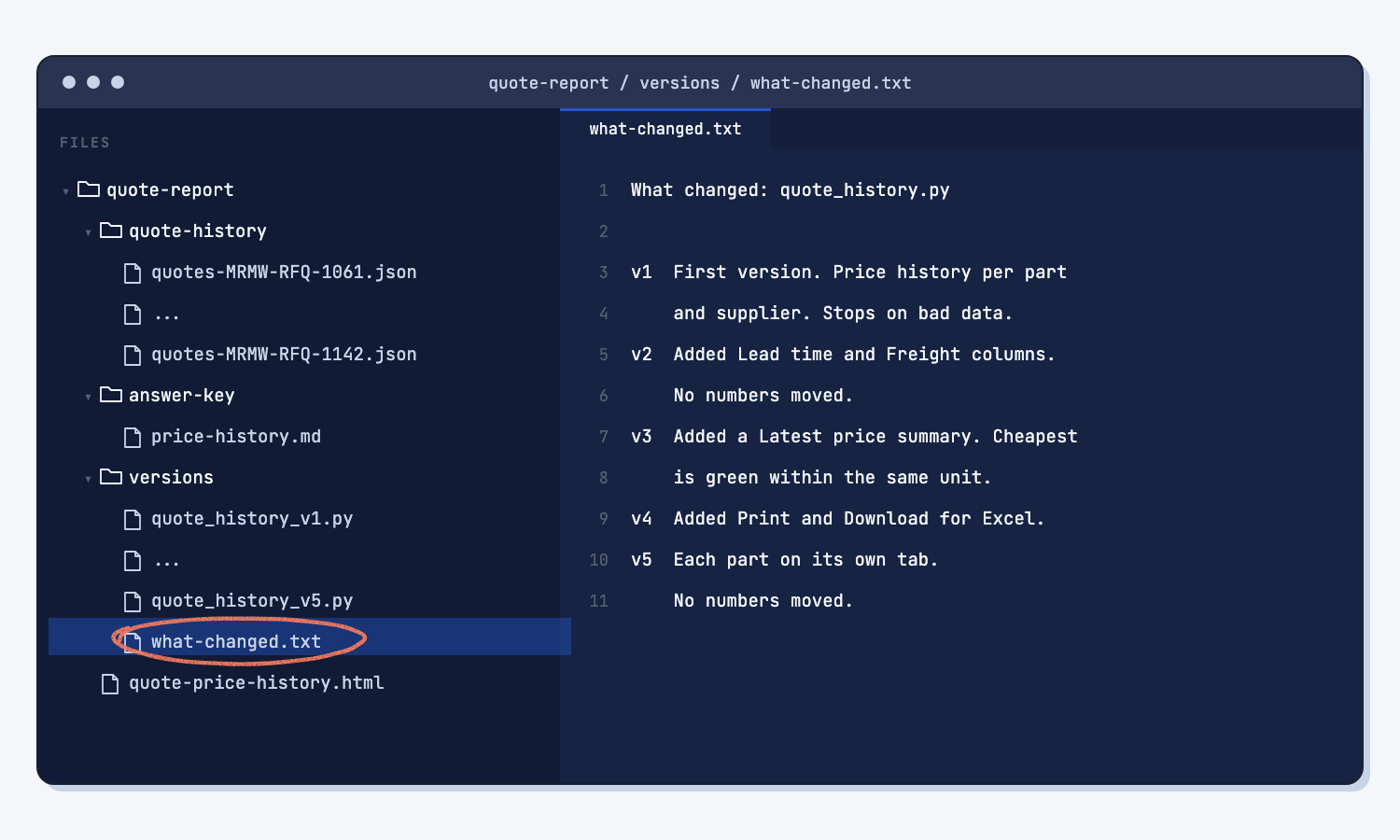
Two rules keep this safe. Run every new version on the sample files and check the answer key before you run it on real quotes, because the sample is where you know the right answer. And if a version goes wrong, go back to the last one that passed instead of asking Claude to patch a patch, because a known good version is one minute away and a pile of patches can take an afternoon to untangle. My note for the four changes in Guide 54 is in what-changed.txt, and the versions are v2, v3, v4, and v5.
Step 5. Update the skill so it runs the newest checked version
Your skill still carries the version it was made with, so when you are happy with a new version, make the skill again from it. (What is an AI skill?) Attach your newest checked script, send the skill prompt below with v1 changed to your version number (v5 in my case), and upload the new quote-history.zip in place of the old one (see Upload a Claude skill).
I attached quote_history_v1.py, the newest version of my script. It works, and I checked it against my sample answer key. Turn it into a Claude skill so it runs the same way every time.

1. Make a folder named quote-history with a SKILL.md file and the script inside a scripts folder. Do not change the script.
2. In SKILL.md, write short, plain steps: find the folder of quote .json files, run the script on that folder, give me the page, and if the script stops, show me its message and ask which value to fix. Never write or change the page by hand.
3. The description at the top should say when to use it, in the words I would use, like "update my quote price history" or "show price history for a part".
4. Zip the folder as quote-history.zip and give me the zip.
With the new skill installed, saying "Update my quote price history" built a page identical, byte for byte, to the version 5 page I had checked. You can also download my finished skill: quote-history.zip.
What does good look like?
When you are done, the script runs on every quote file without stopping, the new RFQ 1150 row shows on the page, every older row still matches the answer key, and your versions folder holds each checked version with a line about it in what-changed.txt. Answer key, sample data. The fixed values come from the quote file itself.
| File | Field | Old value | New value |
|---|---|---|---|
| quotes-MRMW-RFQ-1150.json | quote date | 12/01/2026 | 2026-12-01 |
| quotes-MRMW-RFQ-1150.json | MR-3001 unit price | "$99.25" (text) | 99.25 |
The skill you upload runs the same script you checked, so asking it to update your price history gives you the same page you checked, not a new one.
What can go wrong?
These all came up while fixing this report and saving its versions. None of them is a reason to stop, but each one is a reason to check.
- One stop, two problems. The script stops at the first bad value it finds, so a second bad value may only show on the next run, or when Claude looks closer.
- A guess about your data. Claude read 12/01/2026 as December 1 before it asked, so confirm every guess like that against the quote before you save the file.
- Your summary instead of the message. If you write "it broke on a date," Claude has to hunt for the problem, so paste the whole message.
- The new page has the old name. Each version writes
quote-price-history.html, so rename the page with its version number when you save it. - The skill runs an old version. Until you upload the new zip, the skill keeps running the version it was made with, so update it every time a new version passes.
- The answer key does not know the new quote. Check the new row against the quote file by hand, and move the practice file back to
brokenwhen you are done.
How do I check the answer?
Check the fixed page, not Claude's description of it, and check it on the sample before you run it on real quotes.
- Compare the new RFQ 1150 row with the quote file: the date, the quantity, and the price.
- Send the check prompt from Guide 54 with the 1150 file moved back, which should say all 24 rows match.
- Open
what-changed.txtand make sure every saved version has a line. - After you upload the new skill, ask it to update your price history and compare the page with the one you checked.
Why does this way work?
It works because the script refuses to guess, you fix the real cause once, and you only ever keep versions you checked. Here is the short "why" behind each habit.
Paste the exact message. The stop message names the file, the field, and the value, so Claude goes straight to the problem instead of guessing what "it broke" means.
Fix the cause, not the page. (Make bad data stop the script, and fix the instructions once.) The stop message named the file and the value, so the fix went into the data file once, and every page after it comes out right without anyone remembering to correct it by hand.
Save every working version with a note. (Save every working version, and keep a record of what changed.) A saved version is a known good point, and the note tells you which one to go back to, so a bad change costs you a minute instead of a morning.
Keep the skill on the newest checked version. (What is an AI skill?) A skill packs your checked script with plain steps, so every month the report comes out the same way, from the version you trust.
Frequently asked questions
Do I need to do Guides 53 and 54 first?
It helps, because those guides build and change the script this one fixes. If you skipped them, download my version 5 script and the sample files from Guide 53 and start at Step 1 here.
Should I fix the data file or the script?
Ask Claude to find out first, which is what the fix prompt does. If one quote was typed wrong, fix the file. If every new quote will look like this one, fix the script and save it as a new version.
How do I go back to an older version?
Attach the older file from your versions folder, such as quote_history_v3.py, and start your next change from it. If the skill is running a bad version, make the skill again from the last good one, as in Step 5.
Can I use ChatGPT or Copilot instead?
Yes, if the tool can run code and give you files back. The prompts are plain text, and the script is plain Python, so it runs the same no matter which AI fixed it.
Take this with you
Two prompts and a finished skill. Together they let you fix any report Claude built for you and keep only versions you checked.
1. Fix it when it stops or looks wrong.
I ran quote_history.py on my quote files and it did not do what I expected. I attached the script and the files.

What I saw (the exact message, or a screenshot):
[PASTE THE MESSAGE OR ATTACH THE SCREENSHOT]

What I expected:
[ONE OR TWO PLAIN SENTENCES]

First, tell me in plain words what went wrong and whether the problem is in a data file or in the script.
If it is a data file: fix only the bad value or values in that file, tell me each old value and new value, and do not change the script to accept bad data.
If it is the script: fix only that problem, save it as a new version, and keep the old one.
Then run it again on all the files and give me the page. Tell me which numbers on the page moved, if any.
2. Update the skill when a new version passes.
I attached quote_history_v1.py, the newest version of my script. It works, and I checked it against my sample answer key. Turn it into a Claude skill so it runs the same way every time.

1. Make a folder named quote-history with a SKILL.md file and the script inside a scripts folder. Do not change the script.
2. In SKILL.md, write short, plain steps: find the folder of quote .json files, run the script on that folder, give me the page, and if the script stops, show me its message and ask which value to fix. Never write or change the page by hand.
3. The description at the top should say when to use it, in the words I would use, like "update my quote price history" or "show price history for a part".
4. Zip the folder as quote-history.zip and give me the zip.
Or download the finished pieces: the skill quote-history.zip and the change note. Next time the report stops, paste the exact message, fix the cause once, and save the new version before you run it on real quotes.
What's next?
- Compare supplier quotes the same way every time, which makes the quote files this report reads.
- Email every supplier about what's missing from their quote, another job for the same saved quotes.
- Change your quote report by saying what you want, the guide before this one, if you want the page to show more.
- Turn a messy ERP export into a clean report, the same idea for ERP data.
- Save every working version and make bad data stop the script, the two ideas behind this guide.