- Your ERP system
Work tool. The company system that runs orders, inventory, and purchasing. Guides use exports from it, not a live link. - Claude
AI app. An AI chat app. You type or paste text, or add a file, and it writes back. - ChatGPT
AI app. An AI chat app. You type or paste text, or add a file, and it writes back.
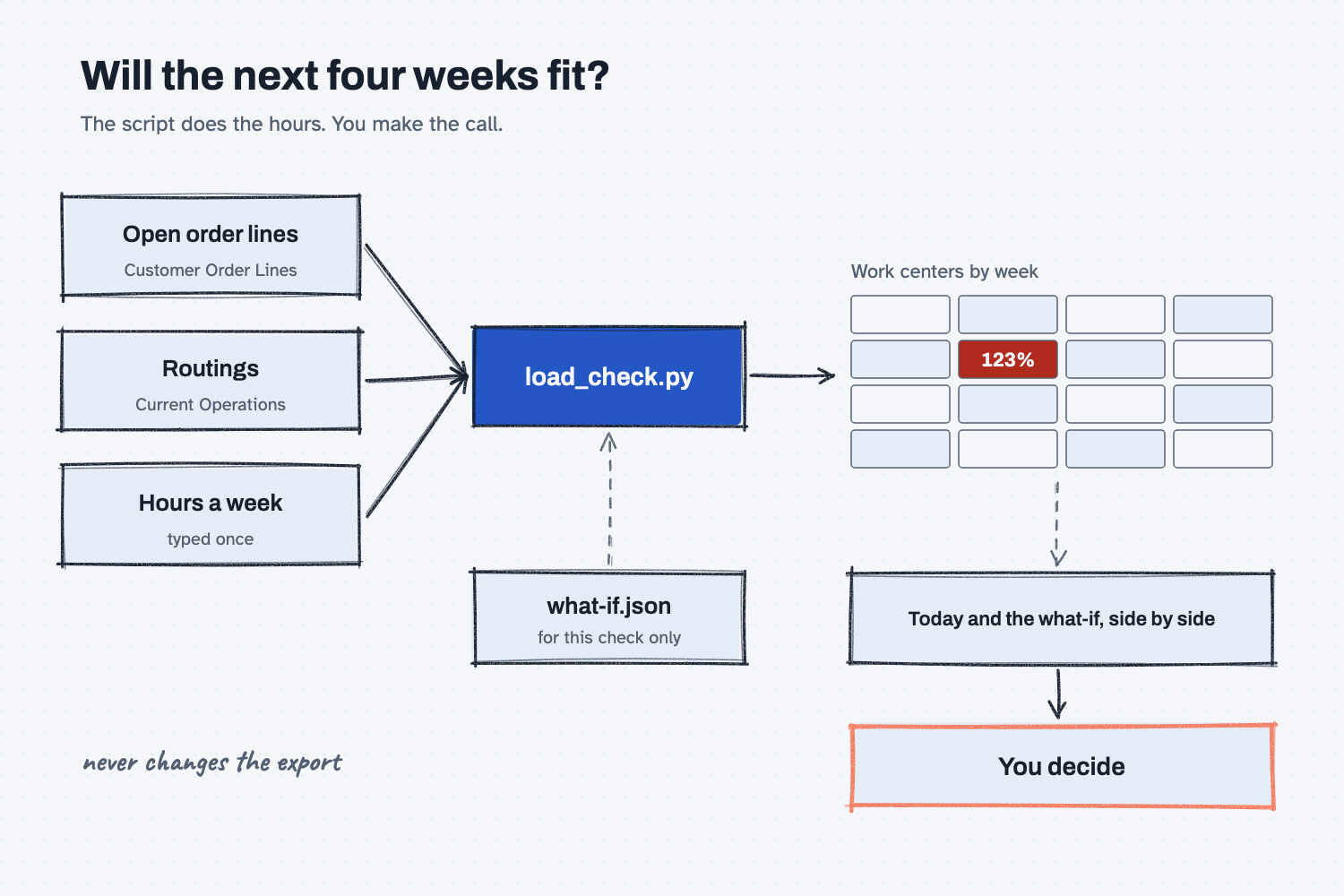
Answer. To check if your Infor orders fit your work centers, export your open order lines and routings, type each work center's hours a week, and have Claude write a script that adds up the hours week by week. The page shows which work center is over 100% and why. Then you test a few what-ifs and decide.
Time and cost. About 25 minutes the first time, and about 5 each week after. $0 to practice with the sample files on the free Claude plan. Who this is for. Planners, plant managers, and owners at shops that run Infor CloudSuite Industrial, who want to see an overloaded week coming before it turns into late orders.
This guide assumes Infor CloudSuite Industrial, also sold as SyteLine, the Infor ERP that most small and mid-size discrete manufacturers run. The steps work the same in the cloud and in recent on-premises versions (10 and later). Some sites also have Infor's own scheduler (APS). This check does not replace it. It is a quick, plain look you can run from exports, and you can check every number in it.
In Build a weekly dashboard from your Infor export, Hector Lee, the planner at Mesquite Ridge Metal Works (a made-up company), turned Monday's order lines into a dashboard. This time he wants to know whether the next four weeks of orders fit the lathes, the mills, the weld bay, and assembly. You do not need to do that guide first.
What will I learn besides a load check?
You will learn five habits that work for any planning check, with a short "why" for each later in this guide.
- Have AI build the tool once. Claude writes the script, and the script does the math the same way every week.
- Find the overload before you fix it. The page names the week, the work center, and the orders behind it.
- Test what-ifs without touching the data. A small file says what to change, for this check only.
- Keep the person deciding. The script shows what each choice does, and you pick.
- Set bad rows aside, and never guess. An item with no routing goes on a list, not into the total as zero.
What do I need before I start?
You need Claude and four sample files. There is nothing to install.
- Claude at claude.ai, with code execution and file creation on. The free plan works for practice. If you have not set it up yet, follow Set up Claude first (about 10 minutes, once). To add files to a chat, see Attach files to a chat.
- Open order lines: mrmw-co-lines-2026-11-16.xlsx, shaped like the Customer Order Lines grid exported with Actions > To Excel.
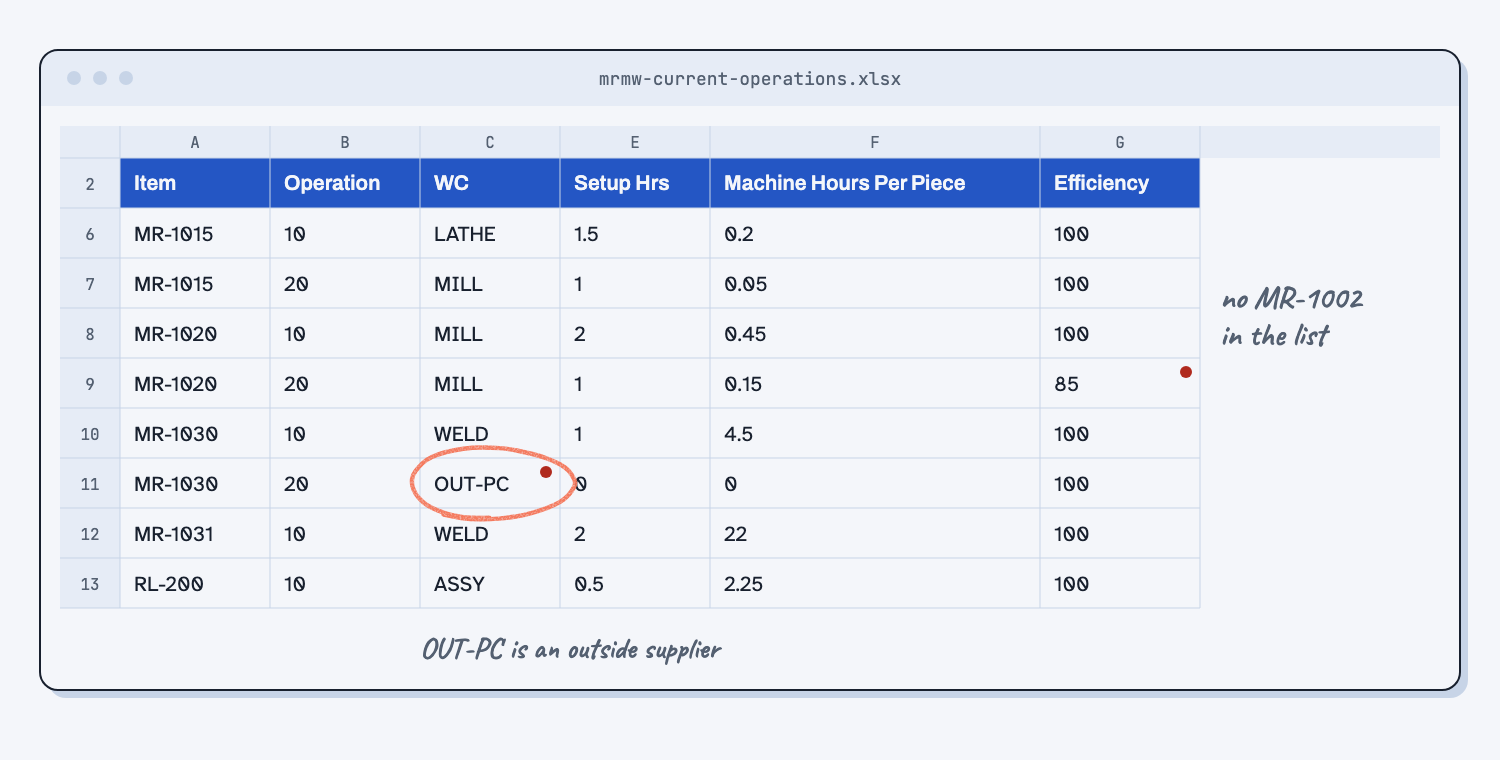
- Routings: mrmw-current-operations.xlsx, shaped like the Current Operations grid. Each row is one operation for one item, with its work center, setup hours, machine hours per piece, and efficiency.
- Hours a week: mrmw-work-center-hours.xlsx, a small sheet Hector typed from the shift plan. Infor keeps this in shifts and resource groups, and typing four rows once is faster than exporting them.
- The answer key: load-check-2026-11-16.md. A script made these numbers, not AI.
- For your own data later: how to export from Infor, and what to ask IT for, is in Get your data out of Infor (about 10 minutes, once).
Safe use. These files are made up. Real order lines and routings hold customer names and your cost of making parts. Check your company's AI rules before you attach real ones. Read the safe use notes.
How do I check if my orders fit my work centers?
Look at the files, have Claude build and run the load check, check it against the answer key, try three what-ifs, and decide. Six steps.
Step 1. Look at the routings and hours before Claude does
Open mrmw-current-operations.xlsx and close it without saving. Each item has one or two operations. Three rows matter. MR-1020 operation 20 runs at 85% efficiency, so it takes longer than its hours per piece say. MR-1030 operation 20 is powder coat at an outside supplier, work center OUT-PC, which uses none of your shop hours. MR-1002, the large bracket, is not in the routings at all.
Then open mrmw-work-center-hours.xlsx. Each of the four work centers can run 80 hours a week.
Step 2. Have Claude build and run the load check
Open a new chat at claude.ai, attach all three files, and paste the prompt below. It says which order lines count, how to work out the hours, and what the page should show. Rule 4 is the hours math from Infor's own help: setup, plus quantity times hours per piece, adjusted for efficiency. Rule 7 keeps an item with no routing out of the total instead of counting it as zero hours. The last line keeps the decision with you.
I attached three files from Mesquite Ridge Metal Works:
- mrmw-co-lines-2026-11-16.xlsx: our open customer order lines, exported from Infor CloudSuite Industrial (Customer Order Lines, Actions > To Excel).
- mrmw-current-operations.xlsx: the routing for each item we make, exported from the Current Operations form.
- mrmw-work-center-hours.xlsx: how many hours each work center can run in a week. I typed this one.

I want to know if the next four weeks of orders fit our work centers. Write a Python script called load_check.py that does this check the same way every week. Find every column by its name, never by its position. Row 1 of each file is a note, and the column names are on row 2.

Which order lines count:
1. One order line is Order + Line + Release. Take the spaces off the order number. If the same Order + Line + Release is in the file twice, count it once.
2. Open qty is Ordered minus Shipped. Some quantities are text, like "40.000". Read them as numbers.
3. Count a line only when its Status is Ordered, its open qty is above 0, and it has a due date. Dates can be real Excel dates or text like 11/20/2026 (month/day/year). A line with a blank due date is not counted and is not past due. List it with its row number. Never guess a date.

How to work out the hours:
4. For each open line, find its item in the routing. For each operation, hours = Setup Hrs + open qty x Machine Hours Per Piece x 100 / Efficiency. Setup counts once per order line.
5. Put all of a line's hours in the week (Monday to Sunday) of its due date. Lines that are past due go in the first week. The first week starts on the export date in the file name.
6. Skip operations whose WC is not in the work center hours file, such as outside processing, and list them.
7. If an item has no routing, do not guess its hours. List the line under "No routing, hours unknown."
8. Load % = hours / hours a week x 100, rounded to a whole number, with .5 rounded up.

What comes out: one HTML page, load-check-2026-11-16.html, that opens in a browser with no internet.
- A grid: one row per work center, one column per week for four weeks. Each cell shows hours, hours available, and load %. Color over 100% red, 90 to 100% amber, and the rest plain.
- For each red cell, the order lines that make up its hours, largest first, with order, line, release, item, operation, and hours.
- The lists from rules 6 and 7, and every order line that was not counted, with its Excel row number and the reason.
- A check line: rows in the export = lines counted + lines not counted.

Do not change any of the attached files. Run the script, give me the page and the script, and tell me in a few plain lines which work centers and weeks are over 100% and which orders drive them. Do not tell me what to do about it. I will decide.
This takes a minute or two. Claude writes load_check.py, runs it, and gives you load-check-2026-11-16.html. Download both and open the page in your browser.
Step 3. Check the grid against the answer key
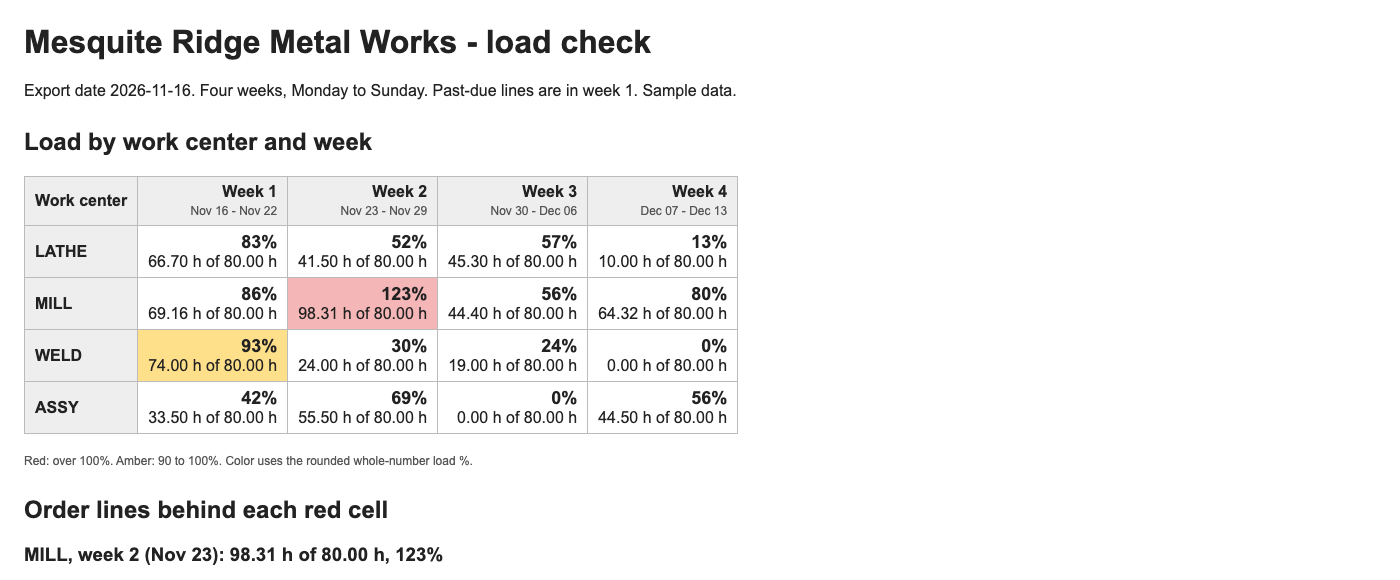
Open answer-key/load-check-2026-11-16.md and compare.
- MILL, week of Nov 23: 98.31 hours of 80, 123%. It is the only red cell.
- WELD, week of Nov 16: 74 hours of 80, 93%, amber.
- The orders behind the red cell: 48195 release 2, 48210, 48207, and 48209. The two biggest are both MR-1020 manifold blocks.
- Lists: MR-1002 is under "No routing, hours unknown." MR-1030 operation 20 at OUT-PC is skipped. Six order lines are not counted, including 48212, which has no due date. The check line says 27 rows = 21 counted + 6 not counted.
If a number is off, tell Claude which one and what the key says, and ask it to fix the script. (Test an AI tool against answers you know.)
Step 4. Write down your choices before you test them
You found the overload. Now list the fixes you could really make, before you look at any results. Hector has two. Alicia in customer service says Anchor Point can take order 48210 on December 2 instead of November 25. Ray, the plant manager, can run one 10-hour Saturday on the mill. A planner who lists the choices first is planning. A planner who asks the computer for "the best fix" has handed off the decision.
Step 5. Test the what-ifs side by side
In the same chat, paste the what-if prompt. It adds a what-if option to the script and runs three files: move the order, add the Saturday, and both. The export is never changed.
I want to try some changes before I decide anything. Add a what-if option to load_check.py. It reads a file called what-if.json in this shape:

{
  "name": "short name for this what-if",
  "move_orders": [{"order": "48210", "new_due_date": "2026-12-02"}],
  "extra_hours": [{"wc": "MILL", "week_of": "2026-11-23", "hours": 10}]
}

move_orders changes the due date of every line on that order, for this check only. extra_hours adds hours to what a work center can run that week. Either list can be empty. Never change the export or the other files.

When a what-if file is given, the page shows today's grid and the what-if grid side by side, with every cell that changed marked, and a line at the top that says what the what-if changed.

Then make three what-if files and run each one:
A. Move order 48210 to 2026-12-02. Alicia in customer service says the customer can take it then.
B. Add a 10-hour Saturday on MILL in the week of 2026-11-23.
C. Both A and B.

For each one, tell me in one or two lines what it fixes and what it makes worse, with the numbers. Do not pick one for me.
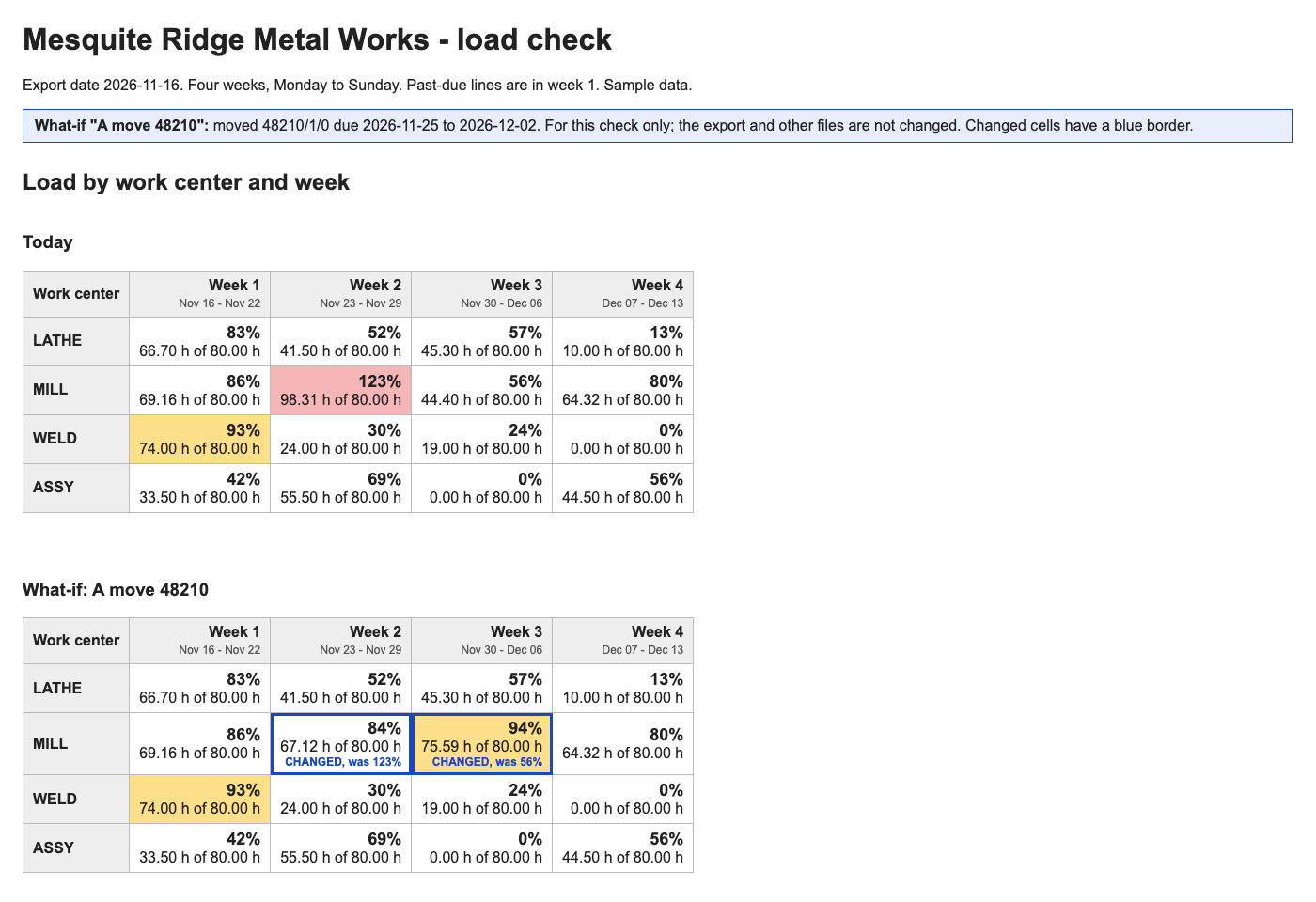
Claude gives you three pages. Each one shows today's grid next to the what-if grid, with the changed cells marked.
Step 6. Decide, and write down why
Read the three results. Moving the order fixes the overload but fills the next week to 94%. The Saturday alone leaves the mill at 109%, still over. Both together bring the week to 75% and the next week to 94%. The script does not pick, because only you know whether Anchor Point really agreed, what the Saturday costs, and what else is coming in. Write one line with your choice and the reason at the top of the page or in an email, and keep the page.
Next Monday, export the order lines again, attach them with load_check.py and the two other files, and ask Claude to run the script as it is.
What does good look like?
With the sample files, the load check shows these loads. Answer key, sample data.
| Work center | Week of Nov 16 | Week of Nov 23 | Week of Nov 30 | Week of Dec 7 |
|---|---|---|---|---|
| LATHE | 83% | 52% | 57% | 13% |
| MILL | 86% | 123% | 56% | 80% |
| WELD | 93% | 30% | 24% | 0% |
| ASSY | 42% | 69% | 0% | 56% |
And the what-ifs change only the mill:
| What-if | MILL, week of Nov 23 | MILL, week of Nov 30 |
|---|---|---|
| Today | 123% (98.31 of 80 h) | 56% |
| A. Move 48210 to Dec 2 | 84% | 94% |
| B. Saturday, 10 more hours | 109% (98.31 of 90 h) | 56% |
| C. Both | 75% | 94% |
You can open my sample page and the three what-if pages to compare.
What can go wrong?
These came up while building and testing this check.
- A line with no due date lands in week 1. If the script treats order 48212's blank due date as past due, the mill shows a second red week that is not real. Rule 3 now says a blank due date is not counted. Check that 48212 is on the "not counted" list.
- A percent is one off. WELD's 74 of 80 hours is 92.5%. Some code rounds that to 92 and some to 93. The prompt says to round .5 up, so check the hours when a percent is close.
- The missing routing becomes zero hours. If the script counts MR-1002 as zero, the weld bay looks lighter than it is. Rule 7 lists it instead, and a person adds the routing.
- Outside work counts as shop hours. Powder coat at a supplier is not your capacity. Rule 6 skips any work center that is not in the hours file and lists what it skipped.
- The duplicate line doubles the hours. Order 48210 is in the export twice. Counted twice, it adds 31 more hours to the red week.
- Claude recommends a fix. The prompt says not to, because the script cannot know what the customer agreed or what overtime costs. If a reply picks one anyway, treat it as a note, not the answer.
- All the hours land in the due week. This is a rough check. A big order that takes two weeks still lands in one. For a closer look, the shop twin series runs orders through the floor hour by hour.
How do I check the answer?
Check the page against the files and the answer key, not against Claude's summary.
- The red cell and its hours match the answer key.
- Pick one order behind the red cell and work it out by hand. For 48210, MR-1020, 45 pieces: operation 10 is 2 + 45 x 0.45 = 22.25 hours, and operation 20 is 1 + 45 x 0.15 / 0.85 = 8.94 hours.
- The check line adds up: rows in the export = lines counted + lines not counted.
- The export file has not changed. Each what-if page says what it changed.
Why does this way work?
It works because the script does the arithmetic you would otherwise do in your head, the same way every time, and leaves the judgment with the person who owns it. Here is the short "why" behind each habit.
Have AI build the tool once. Adding up setup and run hours for 21 lines across four work centers is exactly the kind of job a chat can get slightly wrong on a re-run. A script gets the same answer from the same files every time, which is what deterministic means, and you only spend AI once, on building the tool.
Find the overload before you fix it. Most of a late month comes from one place. The page points to one work center in one week and the orders behind it, which is why you find the bottleneck first instead of pushing overtime everywhere.
Test what-ifs without touching the data. A what-if file changes the check, not the export, so you can try three ideas in a minute and throw away the ones that do not work. That is a small version of what a digital twin does on a bigger scale.
Keep the person deciding. An optimizer searches for the best answer by a score someone wrote down. Your choice here depends on things no file holds, like what Anchor Point said on the phone. So you plan, the script does the math, and you read the results, which is humans plan, AI does.
Set bad rows aside, and never guess. An item with no routing has unknown hours, not zero hours. Listing it keeps a quiet error out of the grid, which is how you make bad data stop the script. It is the same reason you clean the data before AI uses it.
Frequently asked questions
Why not use Infor's own scheduler?
If your site runs Infor's APS or scheduler and trusts it, use it. This check is for shops that do not, or that want a quick, plain look they can explain in a meeting. It also works as a second opinion, because you can check every number by hand.
Can I use job routings instead of item routings?
Yes. For released jobs, the Job Operations form has the job's own routing. Change the prompt to read job operations and subtract the hours already reported. Start with item routings, because they cover orders that have no job yet.
Can this pull from Infor by itself?
Yes, with help from IT. The same order lines and routings are available through Infor's API. Get your data out of Infor has the request to send IT. (What is an API?)
Does it work with ChatGPT?
Yes, if your plan can run code on files. The prompts are plain text, and the script is plain Python.
Can the script find the best fix for me?
It could search, but it would need a score for every choice, such as the cost of a Saturday and the cost of a moved order. Until you have written those down, keep it to what-ifs you choose. (What is an optimizer?)
Take this with you
Two prompts and one script. Together they turn Monday's exports into a load check and a side-by-side of the fixes you are weighing.
1. Build the load check. Attach the order lines, the routings, and your hours a week.
I attached three files from Mesquite Ridge Metal Works:
- mrmw-co-lines-2026-11-16.xlsx: our open customer order lines, exported from Infor CloudSuite Industrial (Customer Order Lines, Actions > To Excel).
- mrmw-current-operations.xlsx: the routing for each item we make, exported from the Current Operations form.
- mrmw-work-center-hours.xlsx: how many hours each work center can run in a week. I typed this one.

I want to know if the next four weeks of orders fit our work centers. Write a Python script called load_check.py that does this check the same way every week. Find every column by its name, never by its position. Row 1 of each file is a note, and the column names are on row 2.

Which order lines count:
1. One order line is Order + Line + Release. Take the spaces off the order number. If the same Order + Line + Release is in the file twice, count it once.
2. Open qty is Ordered minus Shipped. Some quantities are text, like "40.000". Read them as numbers.
3. Count a line only when its Status is Ordered, its open qty is above 0, and it has a due date. Dates can be real Excel dates or text like 11/20/2026 (month/day/year). A line with a blank due date is not counted and is not past due. List it with its row number. Never guess a date.

How to work out the hours:
4. For each open line, find its item in the routing. For each operation, hours = Setup Hrs + open qty x Machine Hours Per Piece x 100 / Efficiency. Setup counts once per order line.
5. Put all of a line's hours in the week (Monday to Sunday) of its due date. Lines that are past due go in the first week. The first week starts on the export date in the file name.
6. Skip operations whose WC is not in the work center hours file, such as outside processing, and list them.
7. If an item has no routing, do not guess its hours. List the line under "No routing, hours unknown."
8. Load % = hours / hours a week x 100, rounded to a whole number, with .5 rounded up.

What comes out: one HTML page, load-check-2026-11-16.html, that opens in a browser with no internet.
- A grid: one row per work center, one column per week for four weeks. Each cell shows hours, hours available, and load %. Color over 100% red, 90 to 100% amber, and the rest plain.
- For each red cell, the order lines that make up its hours, largest first, with order, line, release, item, operation, and hours.
- The lists from rules 6 and 7, and every order line that was not counted, with its Excel row number and the reason.
- A check line: rows in the export = lines counted + lines not counted.

Do not change any of the attached files. Run the script, give me the page and the script, and tell me in a few plain lines which work centers and weeks are over 100% and which orders drive them. Do not tell me what to do about it. I will decide.
2. Test your what-ifs. Same chat. Change the three what-ifs to the fixes you are weighing.
I want to try some changes before I decide anything. Add a what-if option to load_check.py. It reads a file called what-if.json in this shape:

{
  "name": "short name for this what-if",
  "move_orders": [{"order": "48210", "new_due_date": "2026-12-02"}],
  "extra_hours": [{"wc": "MILL", "week_of": "2026-11-23", "hours": 10}]
}

move_orders changes the due date of every line on that order, for this check only. extra_hours adds hours to what a work center can run that week. Either list can be empty. Never change the export or the other files.

When a what-if file is given, the page shows today's grid and the what-if grid side by side, with every cell that changed marked, and a line at the top that says what the what-if changed.

Then make three what-if files and run each one:
A. Move order 48210 to 2026-12-02. Alicia in customer service says the customer can take it then.
B. Add a 10-hour Saturday on MILL in the week of 2026-11-23.
C. Both A and B.

For each one, tell me in one or two lines what it fixes and what it makes worse, with the numbers. Do not pick one for me.
3. My sample script: load_check.py, with what-if files A, B, and C. Your own will differ, so have Claude write yours from the prompts.
Every Monday: export the order lines, run load_check.py on them, look at the red cells, list your real choices, test them, and decide.
What's next?
- Build a weekly dashboard from your Infor export, the guide before this one: the same export as an open-orders dashboard.
- Turn your open-orders export into a twin orders file, when you want to run the orders through a digital twin of the floor.
- Find the bottleneck and test your bad days, the twin version of this check.
- Find the bottleneck first, the idea behind this guide.